
From the Smart Cards Tab
Smart Cards are digital flashcards that allow you to quickly practice or assess specific skills with an individual student.
This article explains how to access Smart Cards directly from the Smart Cards tab and use them with an individual student in Practice Mode or Testing Mode.
Looking to create a Smart Cards test from the Classes page? If you want to create a test for an entire class or an individual student, see How to Create a Smart Cards Test.
Select a Skill
- Go to Smart Cards.
- Select the Skill Set.
- Select the Skill you would like to practice or assess.
Customize the Smart Cards
After selecting the skill, customize the Smart Cards using the available settings.
Test Mode
Choose how you would like the student to work through the cards:
- Items: Student reads the selected number of cards. Choose how many cards to include.
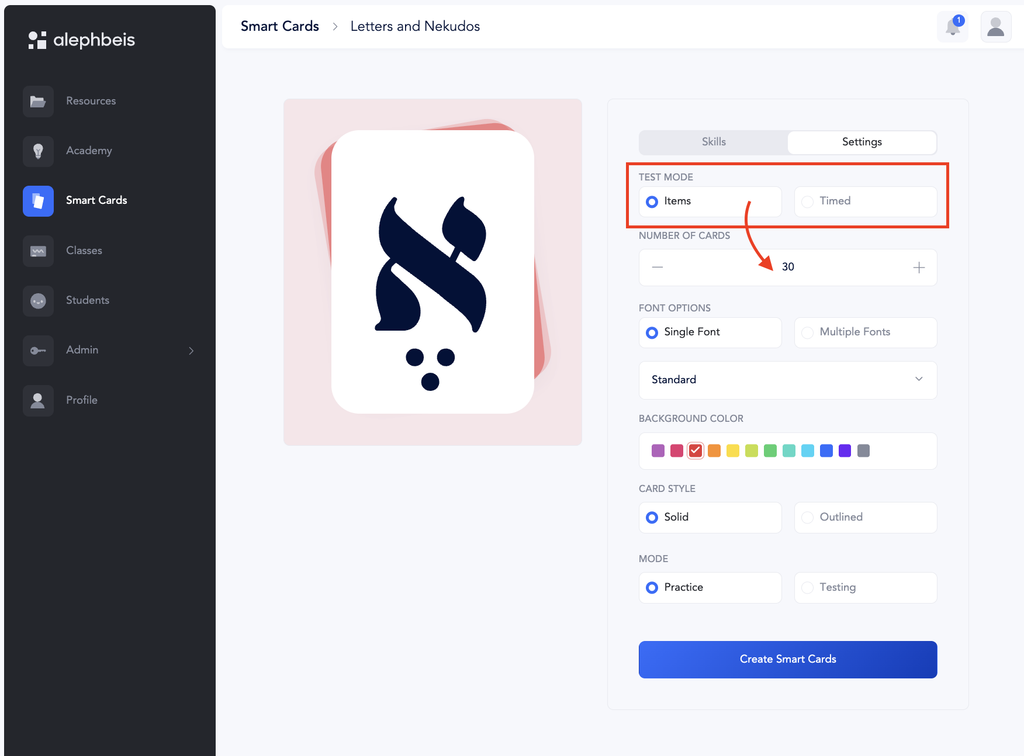
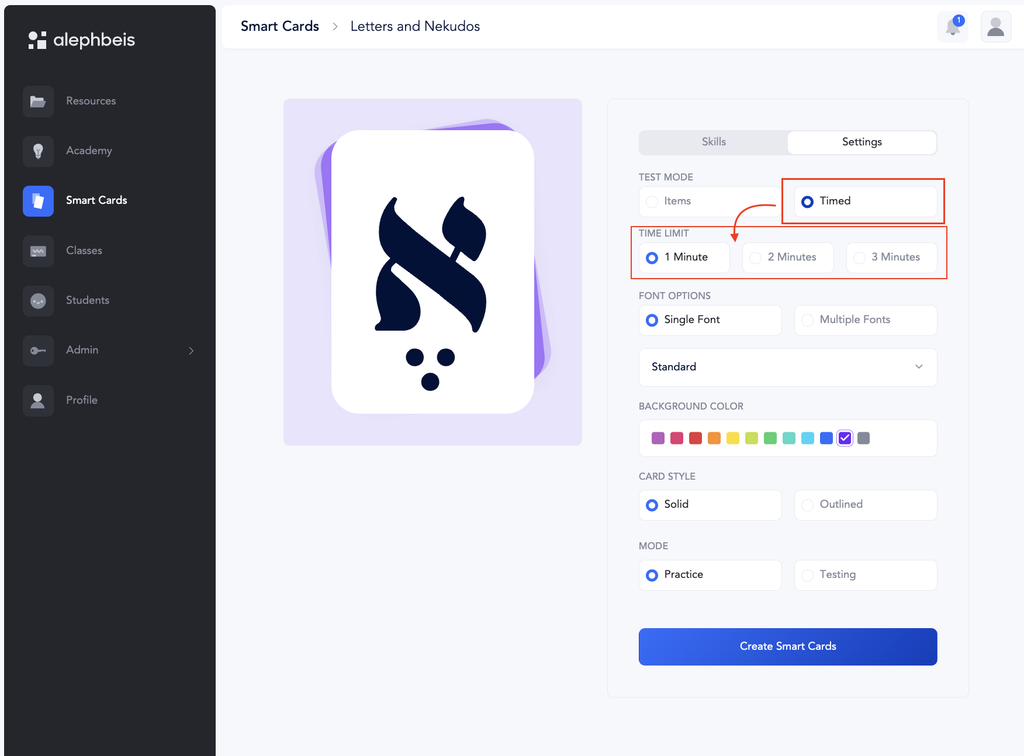
- Timed: Set a specific amount of time. The student reads for that amount of time, and you can see how many cards they read.
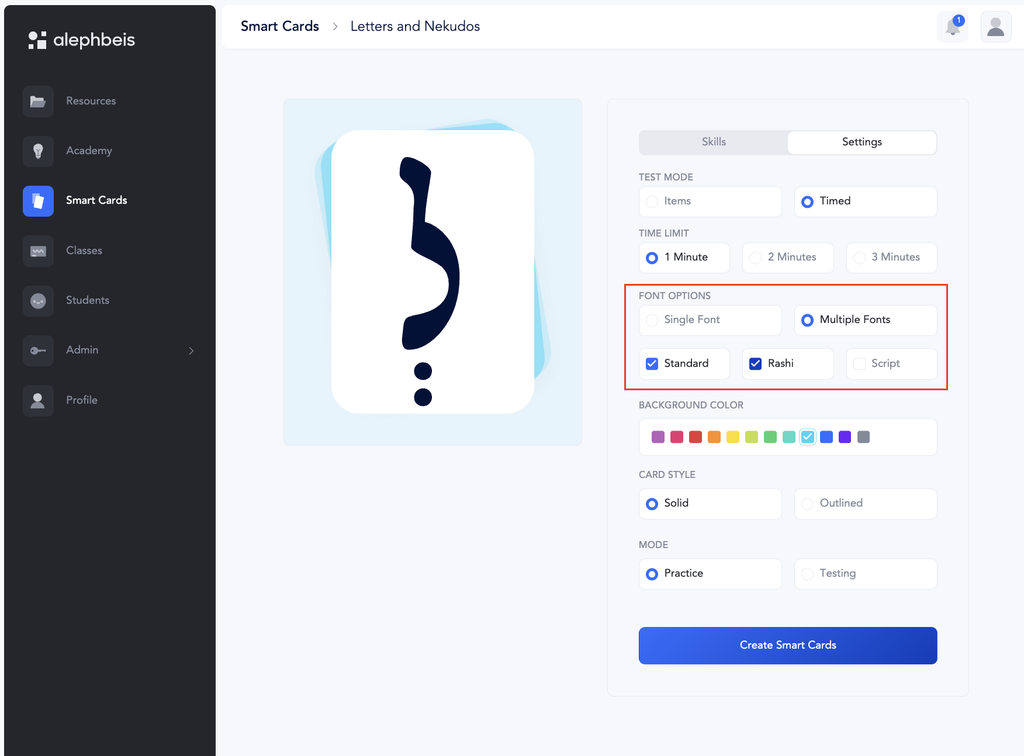
Font
Choose the font you would like to use: Print, Script, Rashi, or Dyslexic
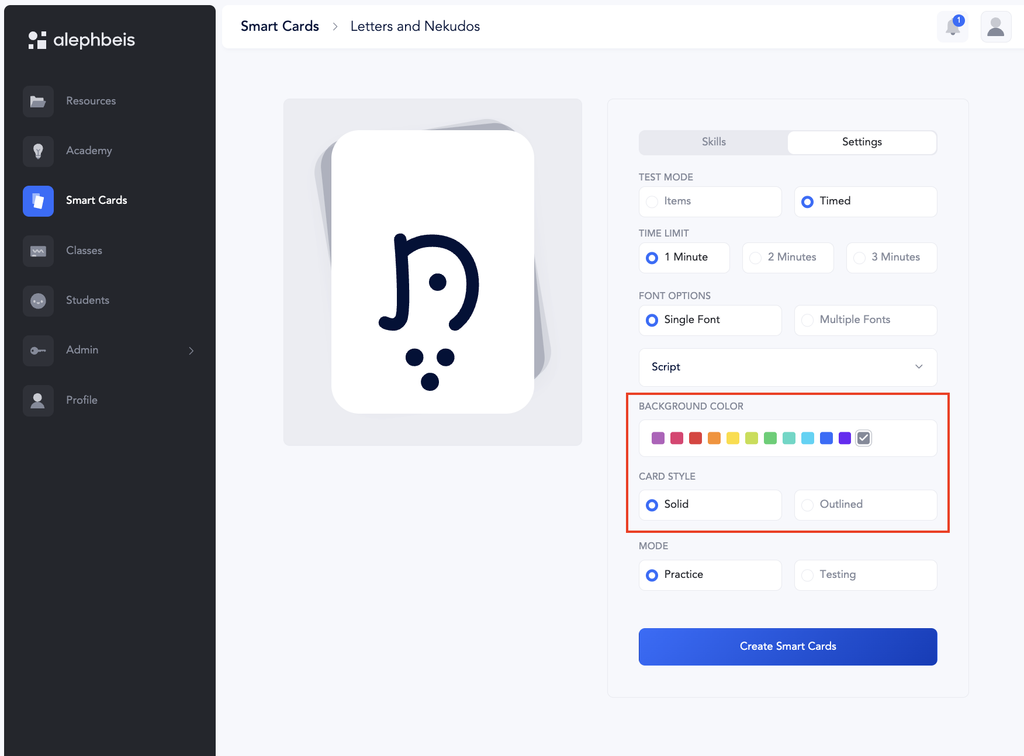
Background Color and Style
Let students choose their favorite background color and card style to make practice more exciting!
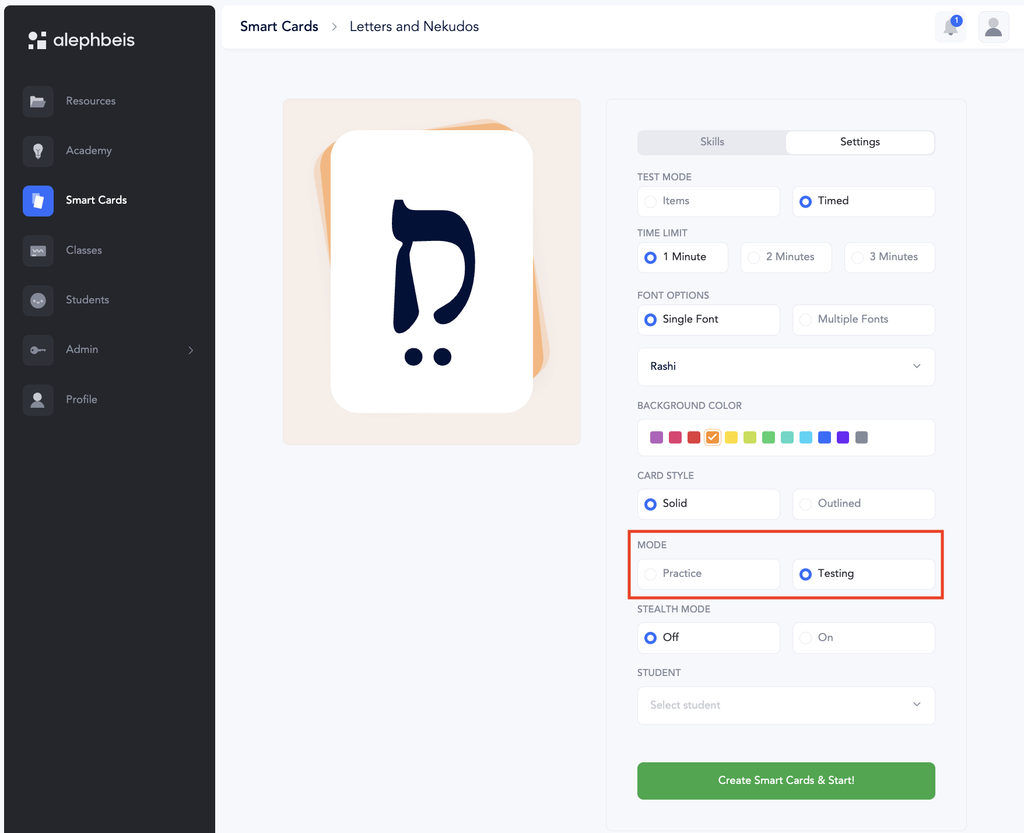
Practice or Testing Mode
Choose whether the Smart Cards will be used in: Practice Mode or Testing Mode
Stealth Mode
When Smart Cards are assigned to a student, you can enable Stealth Mode.
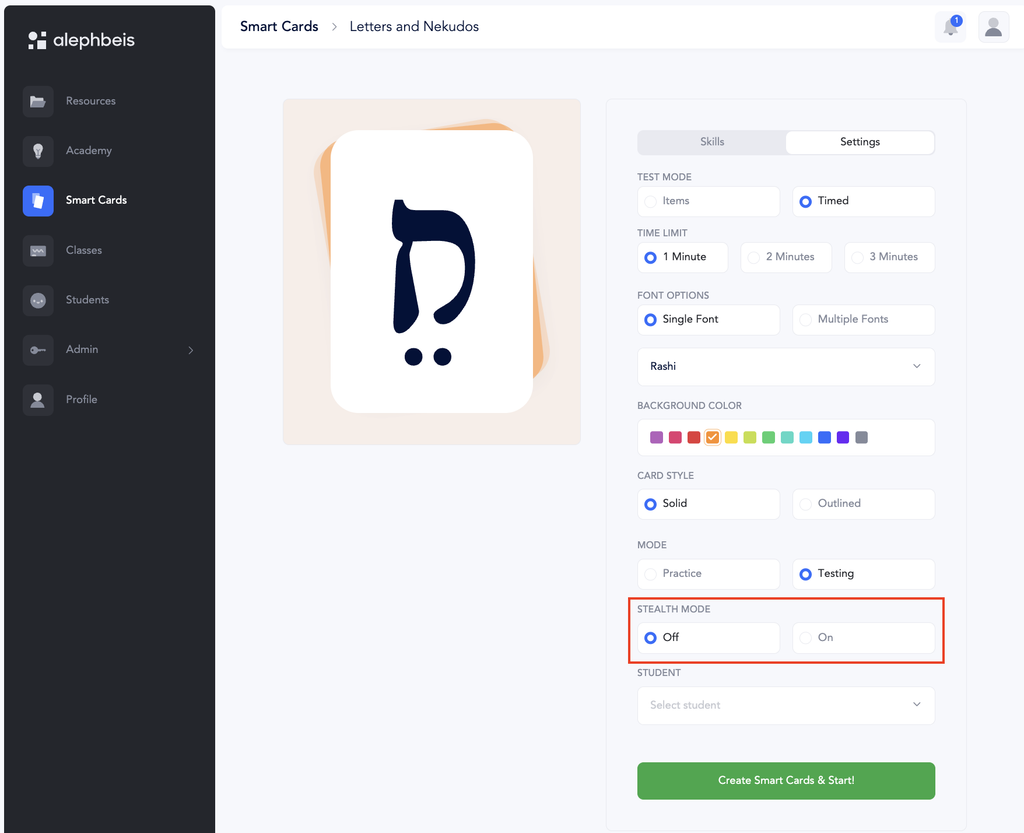
Stealth Mode allows you to grade the student as they read without the student seeing your grading, timer, or performance information. For instructions on how to use Stealth Mode, see the Stealth Mode article.
Assign to a Student
You can assign Smart Cards to a specific student.
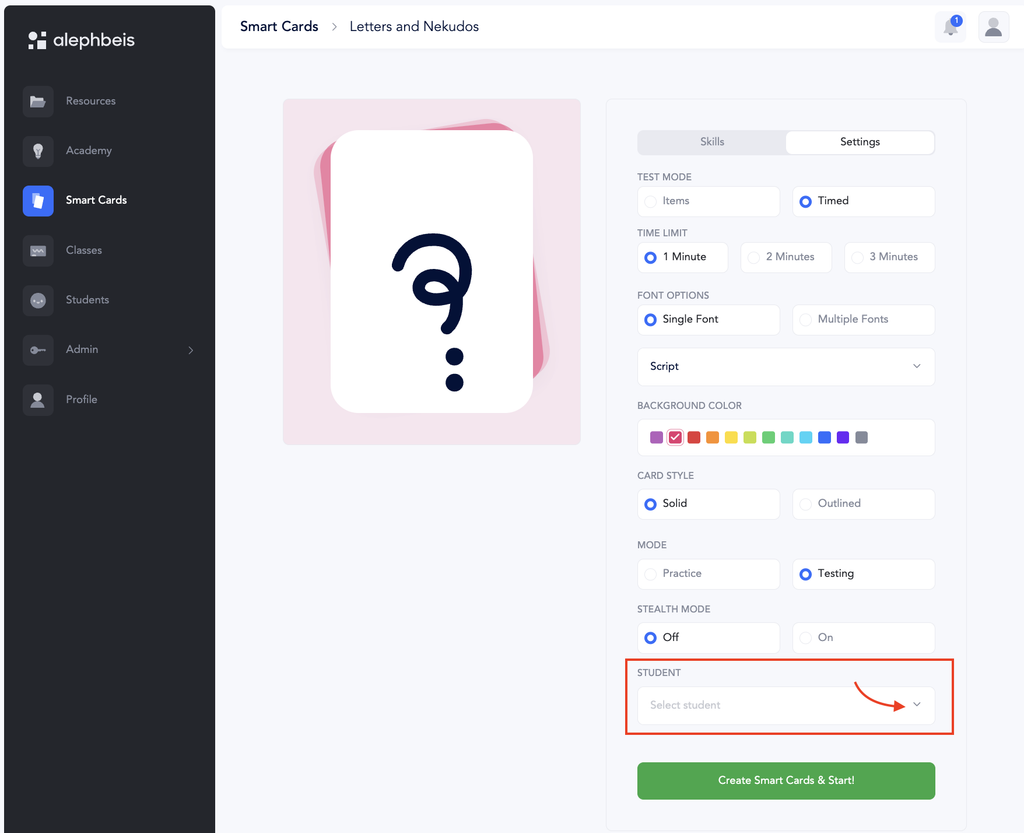
When Smart Cards are assigned to a student and used in Testing Mode, you can record the student’s responses as they read. The results are automatically entered into the student’s profile.
The student can be retested at any time to track progress. You can also use the student’s errors to create customized practice materials, such as a new set of Smart Cards or Smart Sheets targeting the skills the student needs to practice.
See this article on the information card that pops up after the test is complete.
See this article on Q&A about Smart Tests.