
App Updates & Troubleshooting
We’re currently rolling out many exciting upgrades and adding several of the most requested features and functions to the app.
If you notice that something isn’t working as expected, clearing your browser cache will resolves most issues.
If you still experience issues after clearing your cache and refreshing, please reach out to [email protected] and include a screenshot of the issue. We’ll forward it to the development team for review.
How to Clear Your Browser Cache
If the app isn’t working as expected, clearing your browser cache often resolves the issue.
Follow the steps below for your browser.
Google Chrome
On a Mac
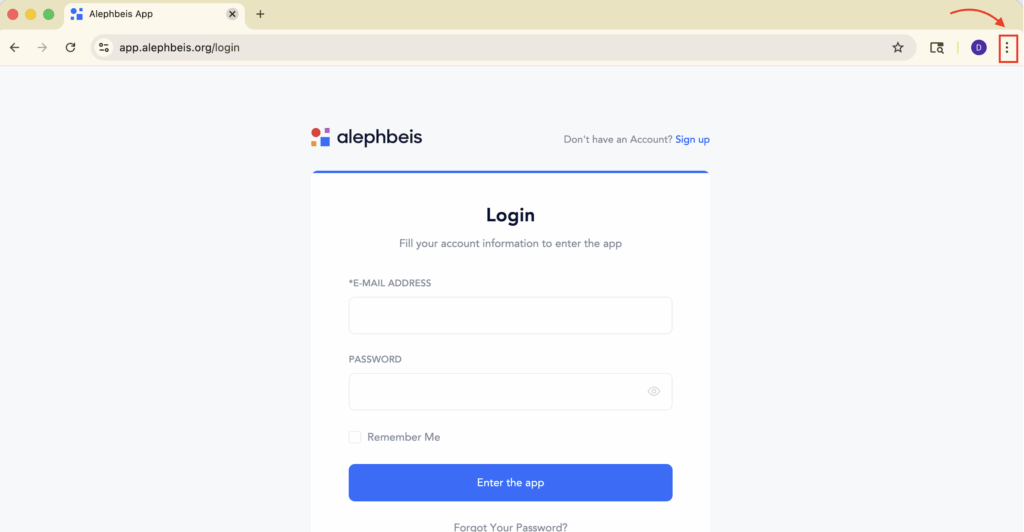
- Click the three dots in the top-right corner of Chrome.
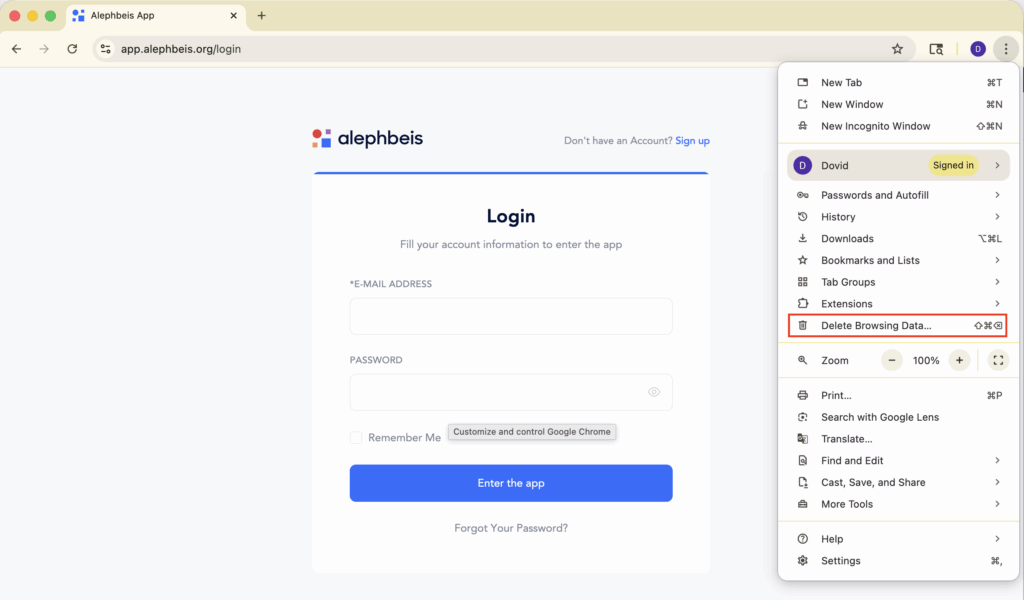
- Select Delete Browsing Data… from the dropdown menu.
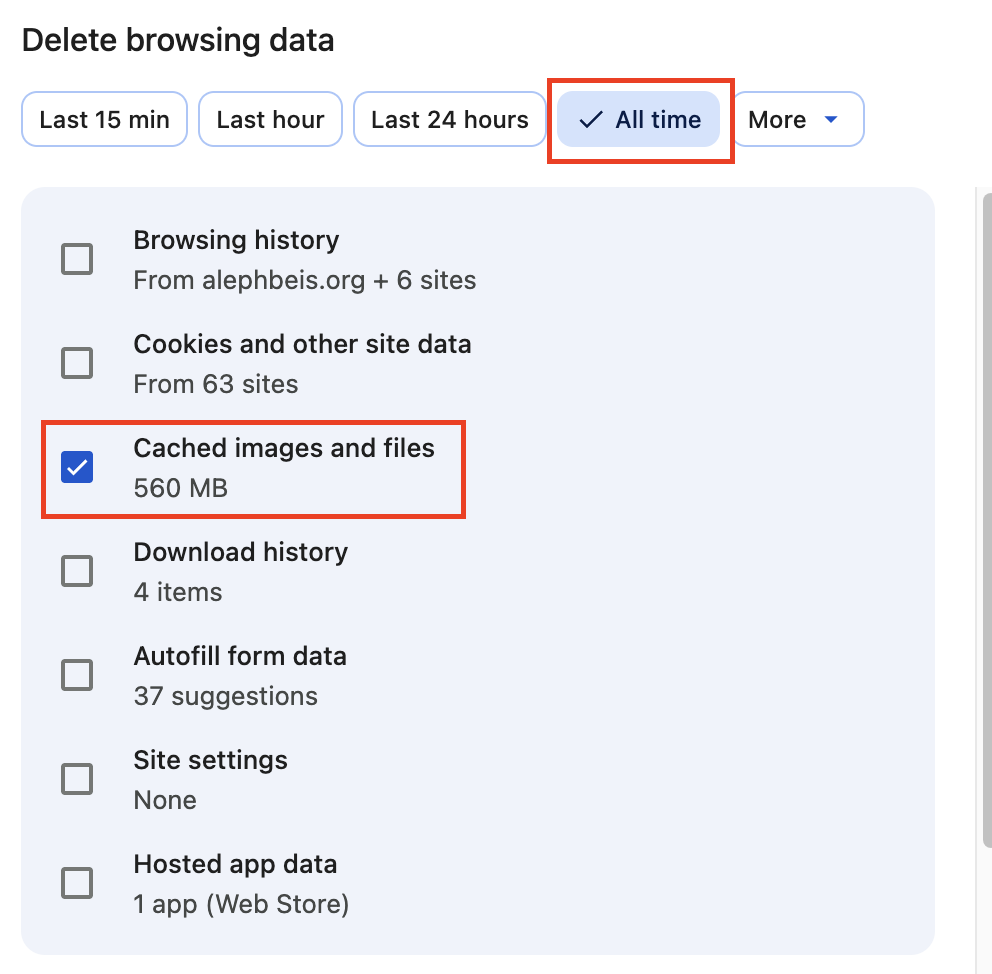
- In the window that appears, set the Time range to All time.
- Check Cached images and files.
- Uncheck Passwords and other sign-in data (so your saved passwords aren’t deleted).
- Click Clear data.
- Refresh the page or app you were using.
On Windows
- Click the three dots in the top-right corner of Chrome.
- Select Settings.
- Click Privacy and Security → Clear browsing data.
(Or press Ctrl + Shift + Delete.) - Set the Time range to All time.
- Check Cached images and files.
- Uncheck Passwords and other sign-in data.
- Click Clear data and refresh the page.
Microsoft Edge
- Click the three dots in the top-right corner of Edge.
- Select Settings → Privacy, search, and services.
- Under Clear browsing data, click Choose what to clear.
- Set the Time range to All time.
- Check Cached images and files.
- Uncheck Passwords.
- Click Clear now, then refresh your page.
Mozilla Firefox
- Click the three lines (menu) in the top-right corner of Firefox.
- Select Settings → Privacy & Security.
- Scroll to Cookies and Site Data.
- Click Clear Data.
- Check Cached Web Content.
- Uncheck Cookies and Site Data if you want to stay signed in.
- Click Clear, then refresh your page.
Safari (Mac Only)
- In the top menu bar, click Safari → Clear History.
- In the pop-up, select All history from the dropdown.
- Click Clear History.
- Close and reopen Safari, then reload the app page.