
How to Delete a Test from a Class
If you need to remove a test from a class, follow the steps below. Deleting a test permanently removes it from your records, so be sure you are selecting the correct assessment before confirming.
Step-by-Step Instructions
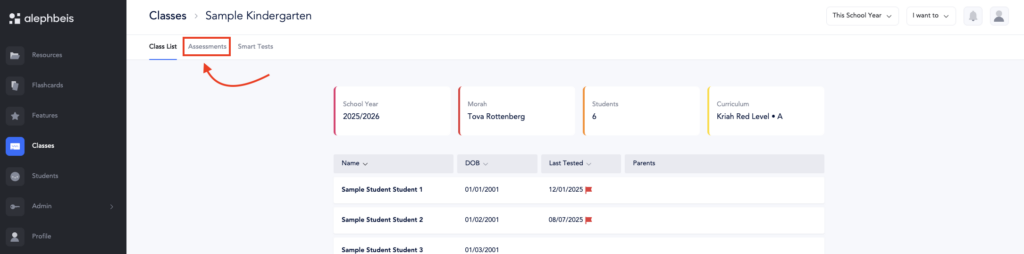
1. Open the Assessments Tab
Navigate to the Assessments tab for the class where the test was taken. This is where all tests associated with that class are stored.
2. Switch to Testing Mode
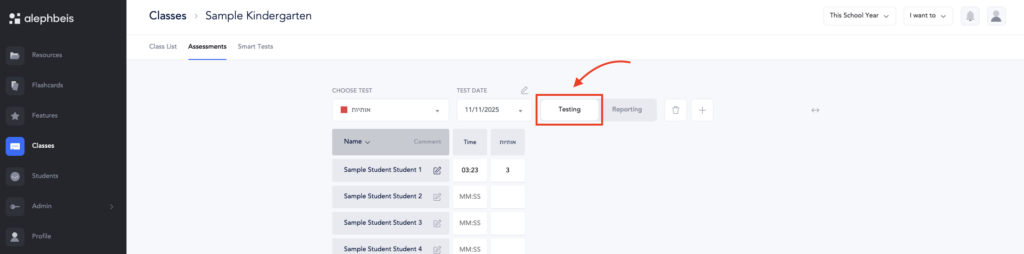
By default, the page opens in Reporting mode.
Use the mode toggle to switch to Testing mode. This view allows you to manage and delete assessments.
3. Search for the Test
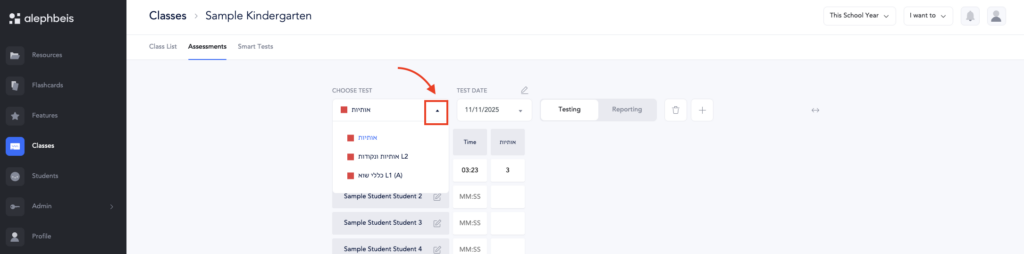
Use the search bar to locate the specific test you want to delete.
If you have taken multiple versions of the same test, be sure to review the dates carefully.
4. Select the Correct Test Date
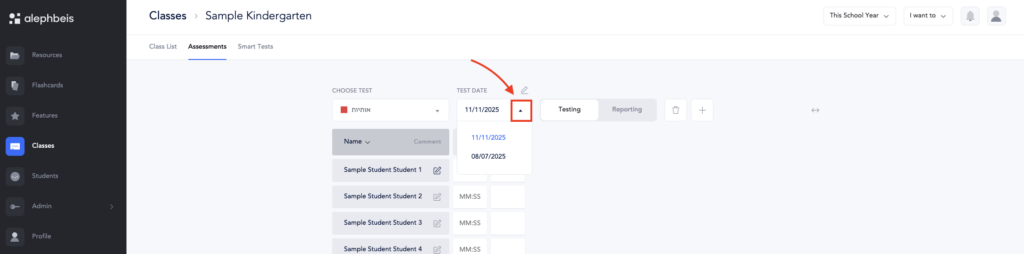
From the list of results, choose the test with the exact date you want to remove.
This step is important—only the selected test instance will be deleted.
5. Delete the Test
Click the trash icon next to the test entry you wish to delete.
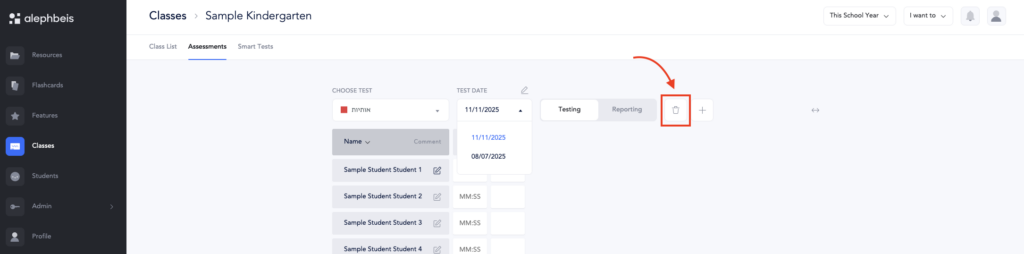
A confirmation message will appear.
Select Confirm to permanently delete the test.