
A Detailed Smart Test allows you to create a customized assessment based on specific skill sets and subskills. It is typically used for summative assessments to determine whether students have mastered the required criteria before moving on to new skills.
You can choose exactly what you want to assess, how many items to include, and which font to use.
Each step below includes a picture to guide you through the process.
Creating a Detailed Smart Test
1. Open Smart Tests
- Go to Classes and select the class.
- Select Smart Tests.
- Click New Test
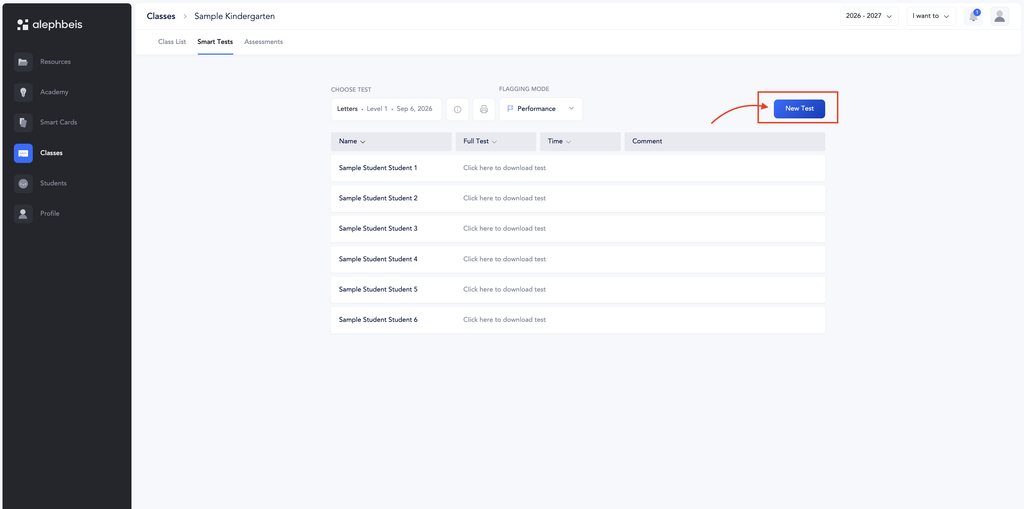
- A panel will open on the right side of the screen.
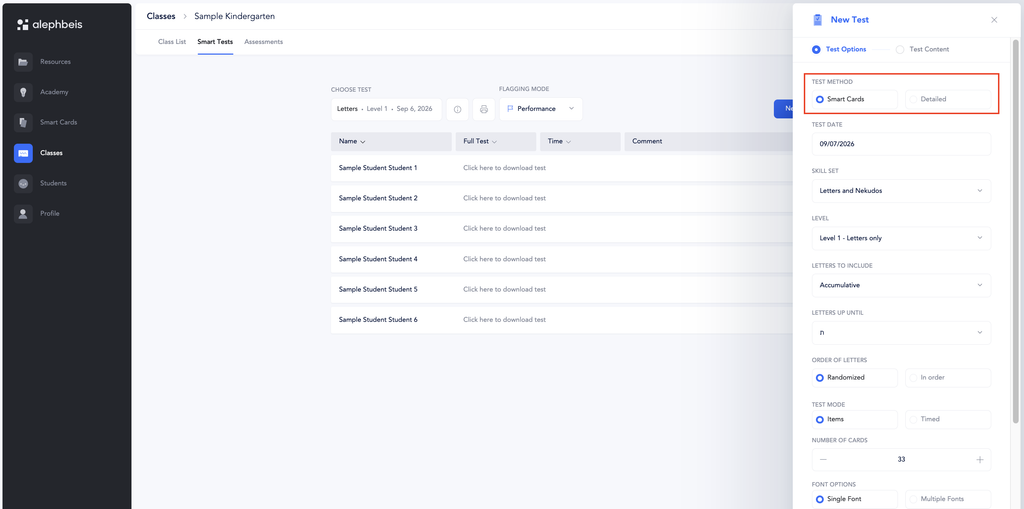
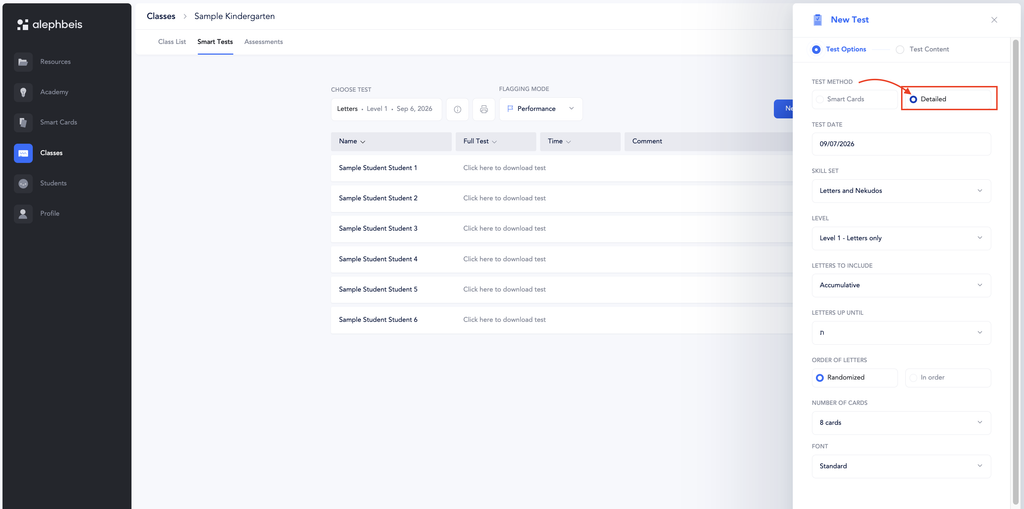
- Select Detailed.
Note: The other Smart Test option is Smart Cards. For information on creating a Smart Cards test, see the Smart Cards article.
2. Select the Date
The date will automatically default to today’s date.
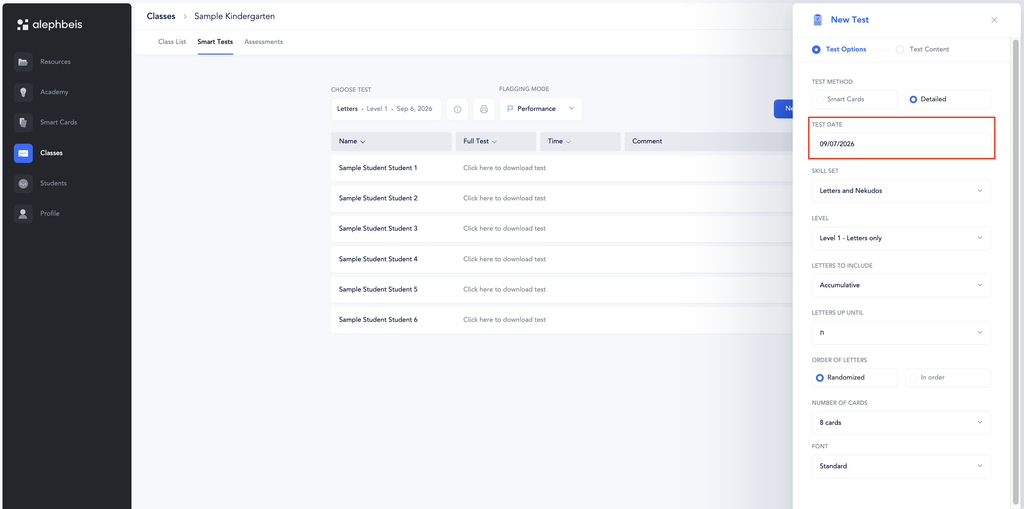
If needed, you can change the date before continuing.
3. Select a Skill Set
Select the Skill Set you would like to assess.
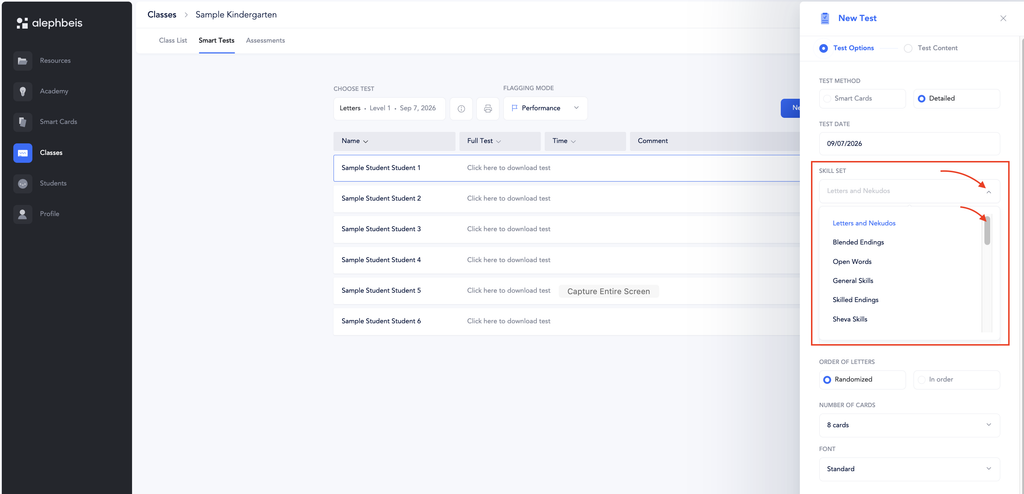
If you do not see the skill set you are looking for, scroll down to view additional options.
4. Select the Subskills
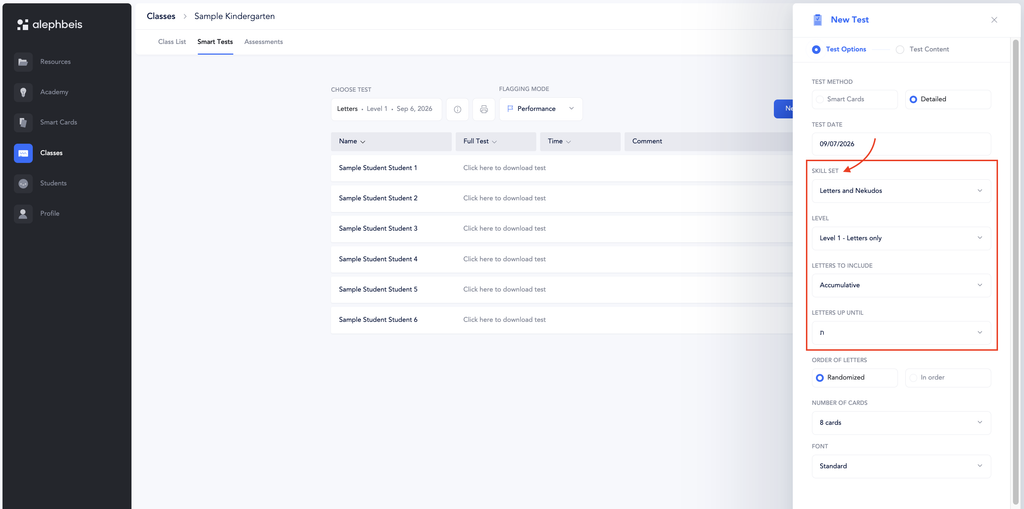
Once you select a Skill Set, the available subskills will appear based on the skill set you selected.
Select the specific subskills you would like to include on the test.
5. Select the Number of Cards
Choose how many items you would like the test to include.
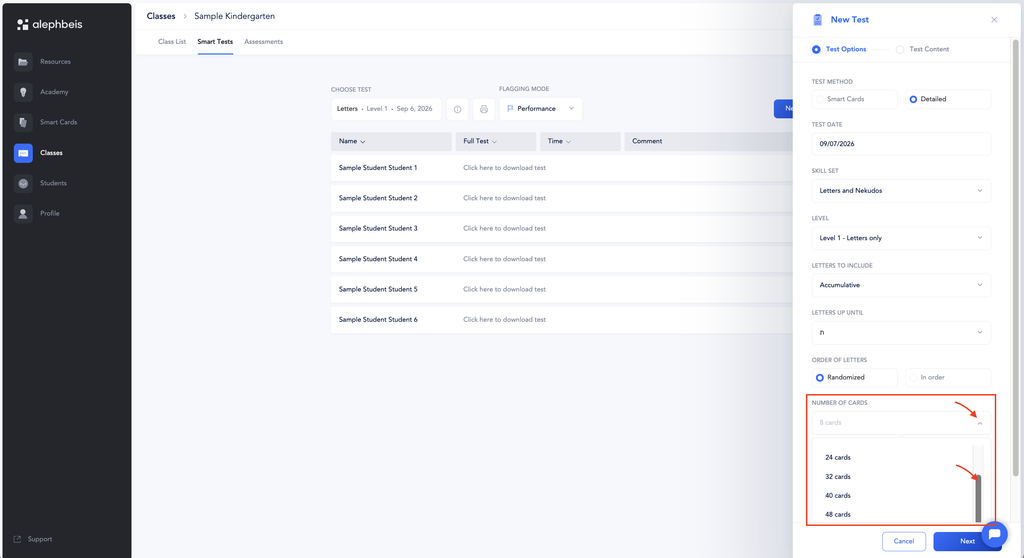
Depending on the skill, you may be selecting a number of letters, nekudos, words, or other items.
Assessment Tip: Include Enough Items to Identify Consistent Errors
When creating a summative assessment, it is important to include enough items for the student to demonstrate the skill more than once.
For example, if a student makes a mistake on a skill one time, it could be a careless error. However, if the student makes the same type of mistake multiple times, this gives you much stronger evidence that the skill needs to be targeted.
For this reason, we recommend including enough items to give the student at least two opportunities to demonstrate each skill.
This makes the assessment more reliable and helps you identify which skills need additional instruction or review.
6. Select the Font
Choose the font you would like to use for the test: Print, Script, or Rashi
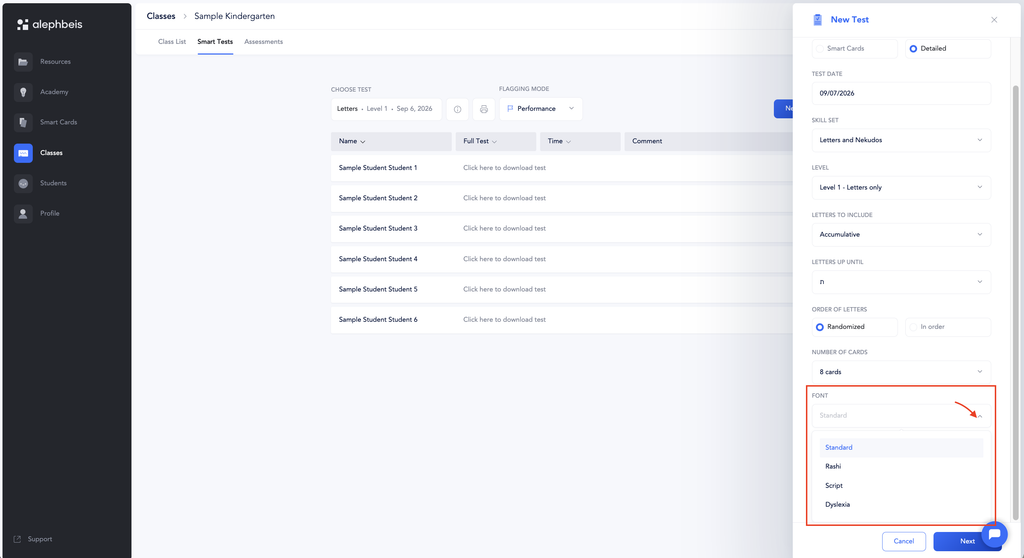
Select the font that matches the skill you are assessing and the student’s instructional needs.
7. Review the Test Content
Click Next.
The test content will now be displayed so you can review the items before creating the test.
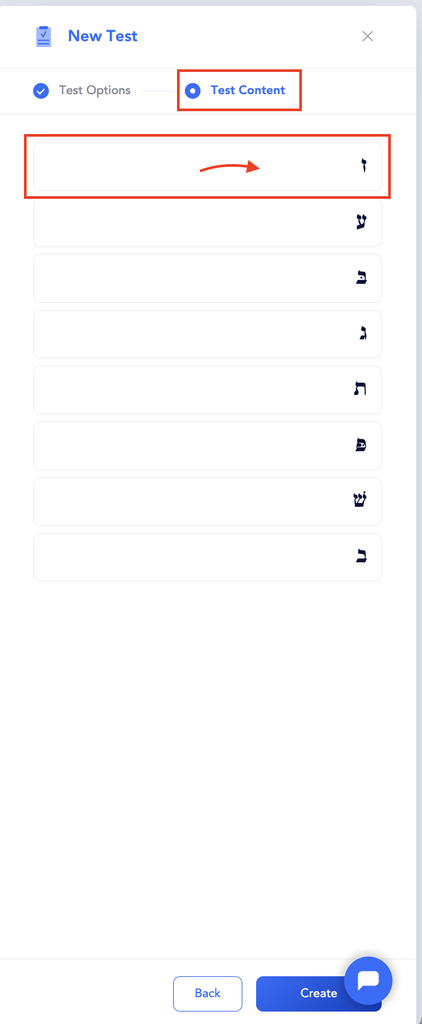
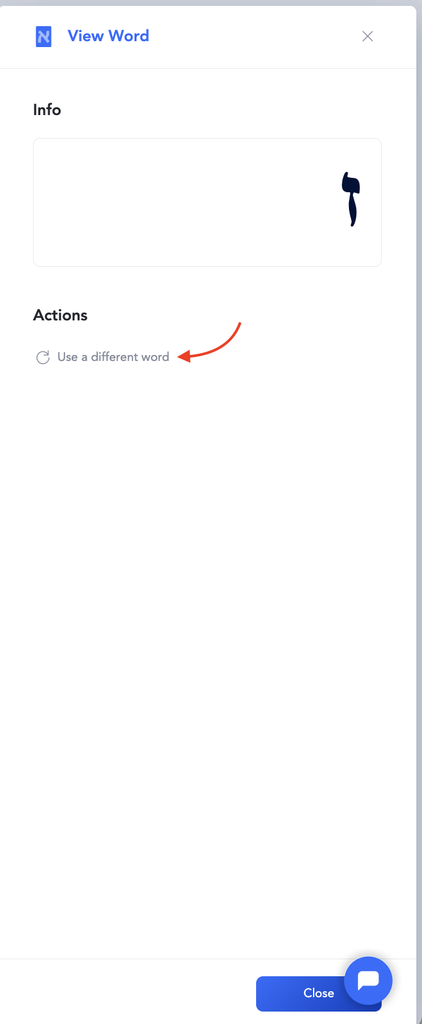
If you would like to change an item, click on the letter, nekudah or word that you would like to change. You will then have the option to select a different word.You will have the option to Select a Different Word or replace the item with another available choice.
Review the entire test and make any changes you would like.
When you are happy with the content, click Create.
8. Download the Test
Once the test has been created, select Download Test.
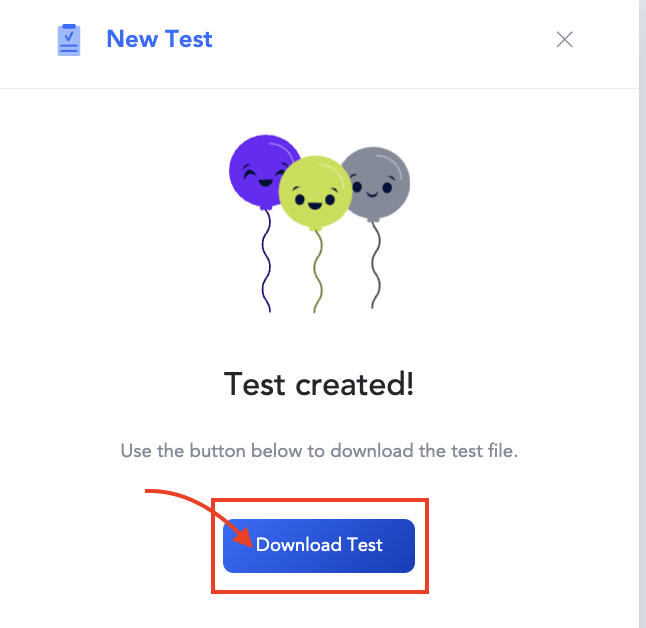
The system will generate the test materials for your class.
9. Print Student and Grading Copies
The download will include:
- A grading copy for each student, with the student’s information already filled in.
- A student copy for the student to complete.
- The option to print additional blank copies.
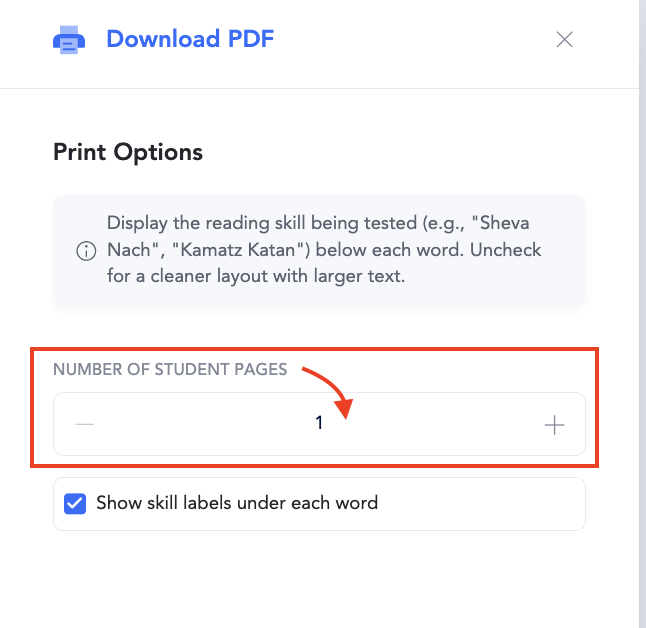
We recommend printing two extra blank copies. This is especially helpful when testing students individually. The last student being tested can receive a fresh, blank copy rather than using a copy that has already been marked up by another student.
10. Administer the Test
Give each student their student copy and use the corresponding student-specific grading copy to record the student’s responses.
Once you have finished administering the test, you can use the grading copies to record the student’s performance and identify skills that may need additional instruction or practice.
11. Grade the Test
A Detailed Smart Test can be graded while the student is reading or after the student has finished the test.
For step-by-step instructions on how to grade a Detailed Smart Test, see How to Grade a Detailed Smart Test.
To learn how to print Smart Test reports, see How Do I Print Reports for Smart Tests?.