
A Smart Cards Test can be created for an entire class or an individual student.
A Smart Cards Test is a customizable assessment tool for quick, ongoing checks of student performance. It can be used regularly to check specific reading skills, identify areas that need additional practice, and monitor student progress over time.
Smart Cards Tests are designed for ongoing assessment, not as a summative assessment at the end of a unit. For comprehensive end-of-unit assessments, use a Detailed Smart Test.
Create a Test for a Class
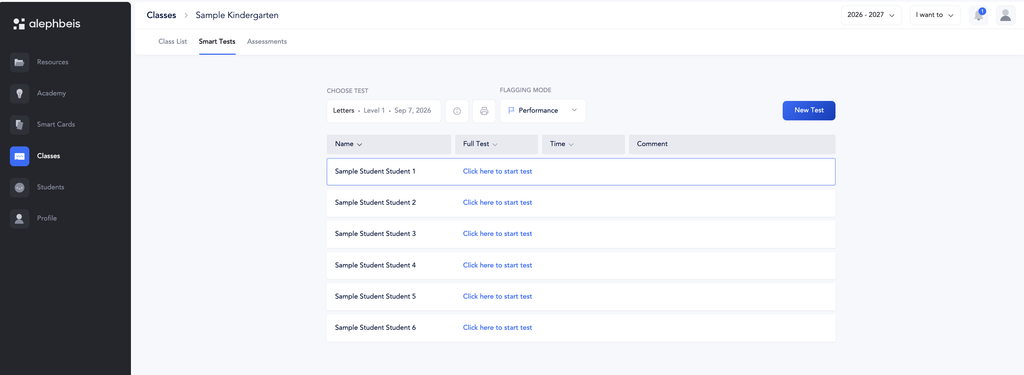
- Go to Classes and select the class.
- Select Smart Tests.
- Click New Test.
- Smart Cards will be selected as the default testing method.
Create a Test for an Individual Student
- Go to Students and select the student.
- Select Smart Tests.
- Click New Test.
- Smart Cards will be selected as the default testing method.
You can also assign a Smart Cards Test to an individual student directly from the Smart Cards settings.
Customize the Test
1. Select the Test Date
The test date will automatically be set to today’s date.
You can change the date if needed.
2. Select a Skill Set
Select the Skill Set you would like to assess.
Once you select a Skill Set, the available skills will automatically adjust based on your selection.
3. Select the Skills
Select the specific skills you would like to include on the test.
4. Select Advanced Skills
If available, select any Advanced Skills you would like to include.
Follow the prompts to select the skills you need to assess.
5. Select the Test Mode
Choose how you would like the student to complete the test:
- Items: Choose how many cards the student will read.
- Timed: Choose how much time the student will have. The test will measure how many cards the student can read within that amount of time.
6. Select the Font
Choose whether you would like to use a single font or multiple fonts.
If you select Multiple, choose which fonts you would like to include:
- Script
- Rashi
- Dyslexic
7. Select the Background Color and Style
Choose the background color and card style to make the test more engaging for students.
8. Review the Test Content
The test content will be displayed for you to review.
If you would like to change a letter, nekudah, or word, click on the item you would like to change. You will then have the option to select a different item.
When you are happy with the test content, click Create.
Administer the Test
Once the test has been created, you can administer it to your students.
For information about the results displayed after a Smart Cards test is completed, see Smart Tests: Information Card.
For answers to common questions, see Smart Tests: Q&A.