
Smart Homework allows Ultimate Tier users to create individualized homework assignments for students who need a customized level of practice.
Instead of giving every student the same homework, you can select exactly what each student needs to practice and customize the format of the assignment.
Smart Homework also allows you to prepare an entire week’s worth of homework at once.
Creating a Smart Homework Packet
To create Smart Homework, begin by selecting the days for which you want to assign homework.
1. Select the Homework Days
Select the days of the week you want to include in the homework packet.
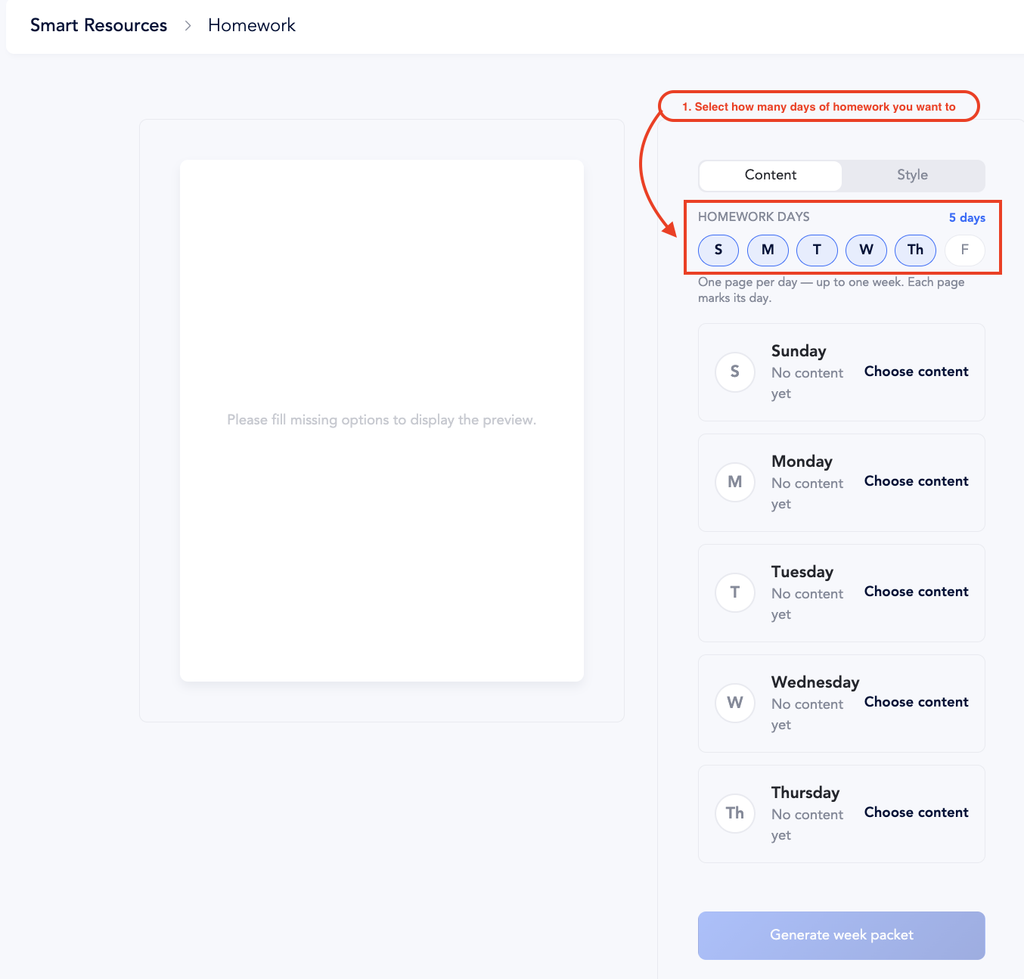
You can select up to one week of homework. Each selected day will have its own page.
2. Choose the Content
After selecting the days you want to include in this week’s homework packet, click Choose Content to select a day to create the homework assignment for that day.
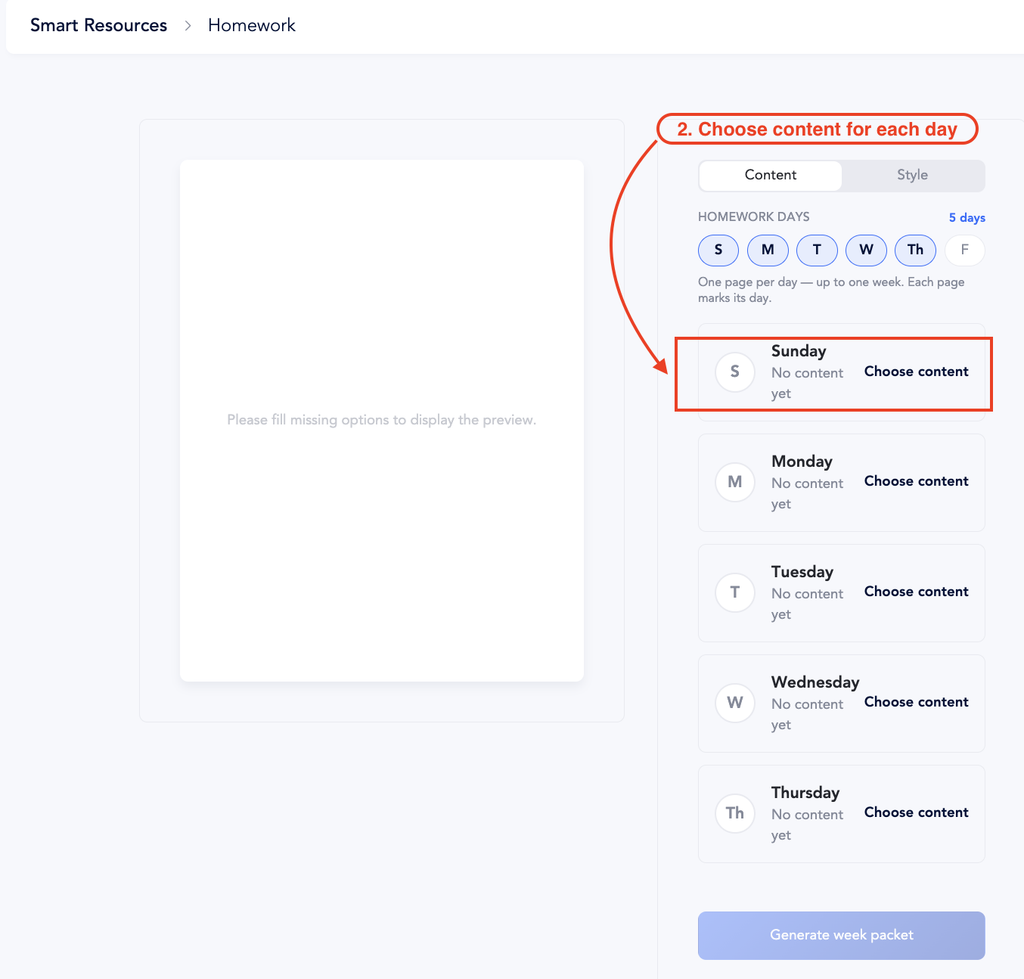
3. Select a Skill Set
The content-selection screen has two tabs:
- Skills
- Settings
The Skills tab is where you select what the student will practice.
Under Skill Set, select the skill set you want the student to practice.
The available options include:
- Letters and Nekudos
- Blended Endings
- Open Words
- General Skills
- Skilled Endings
- Sheva Skills
The choices that appear below the Skill Set will automatically change based on the skill set you select.
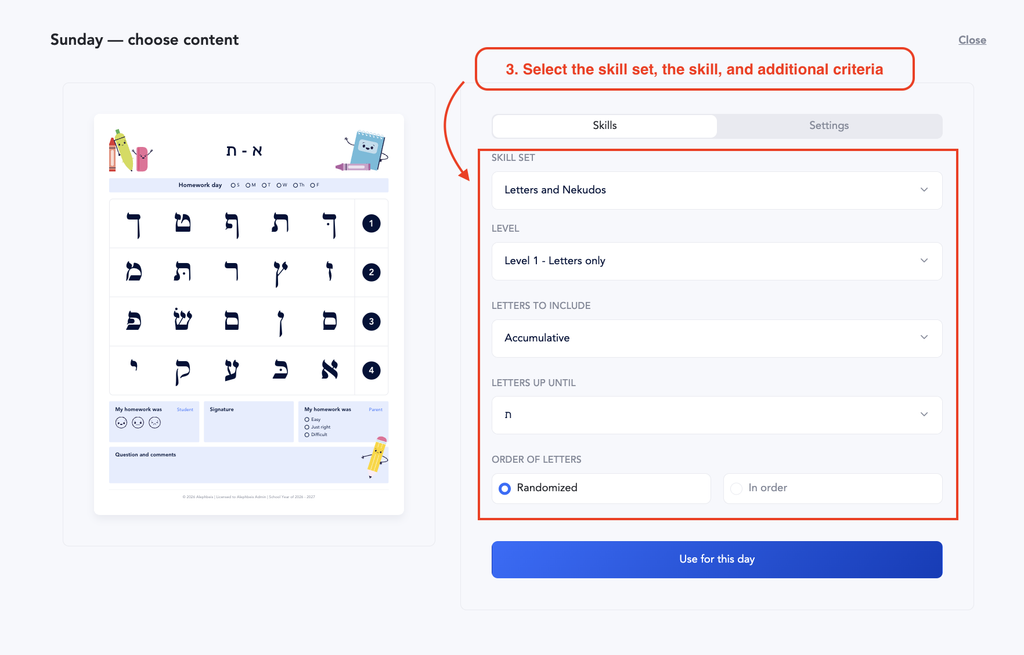
Example: Letters and Nekudos
If you select Letters and Nekudos, you will be prompted to select the appropriate level:
- Level 1: Letters only
- Level 2: Nekudos
- Level 3: Letters and Nekudos
- Level 4: Letters with Nekudos
You can then select the specific letters, nekudos, and other criteria you want included.
Example: Sheva Skills
If you select Sheva Skills, the criteria will change to match the Sheva curriculum.
You can select:
- Curricular level
- Series
- Specific skill within the series
This allows you to create homework that targets exactly the skill a particular student needs to practice.
4. Customize the Settings
After selecting the skills, click Settings.
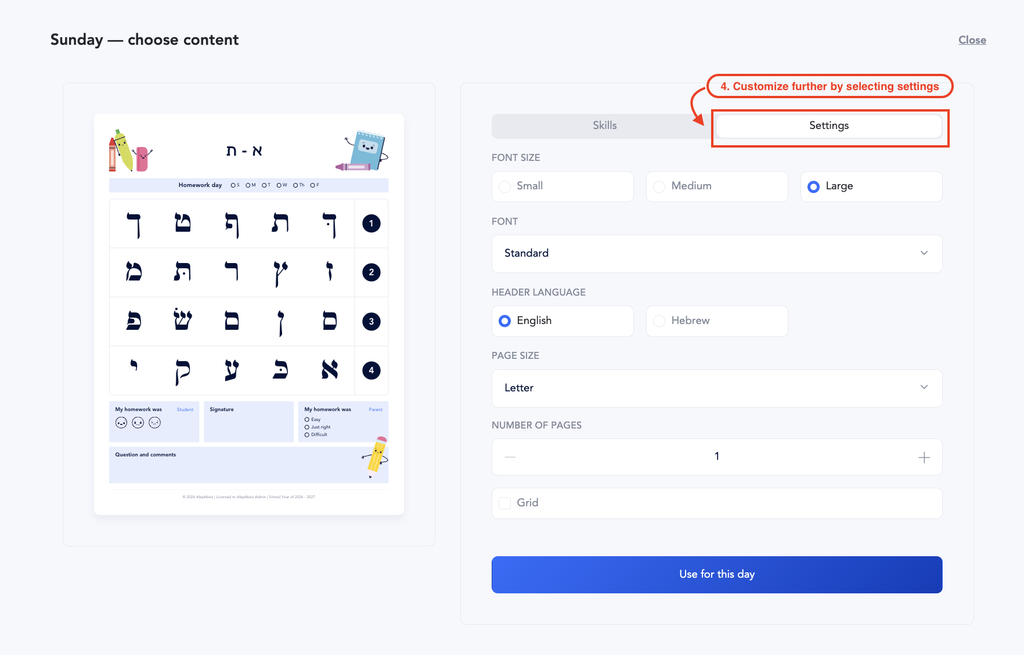
The Settings tab allows you to customize how the homework looks and how much work the student receives.
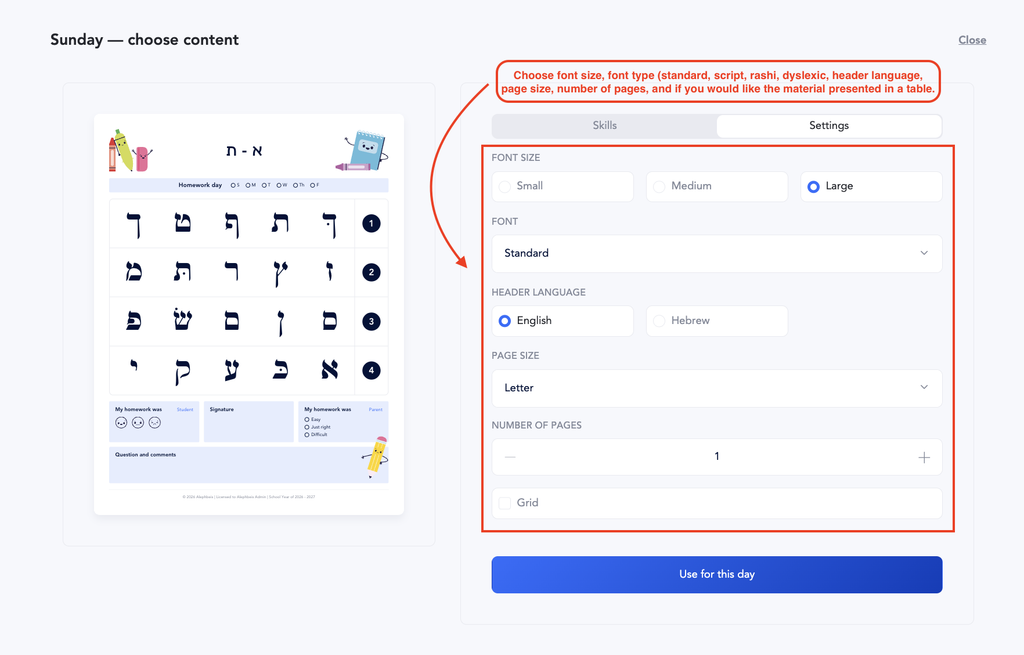
You can customize:
Font Size
- Small
- Medium
- Large
Font
- Select the font appropriate for the student, including Print, Script, Rashi, or Dyslexic fonts.
Header Language
- English
- Hebrew
Page Size
- Select the page size you want to use.
Number of Pages
- Choose how many pages of practice to include.
Grid
- Turn the grid option on or off.
Once you have selected the settings you want, click Use for this day.
5. Choose the Style Options
The Style tab allows you to decide which elements should appear on the homework page.
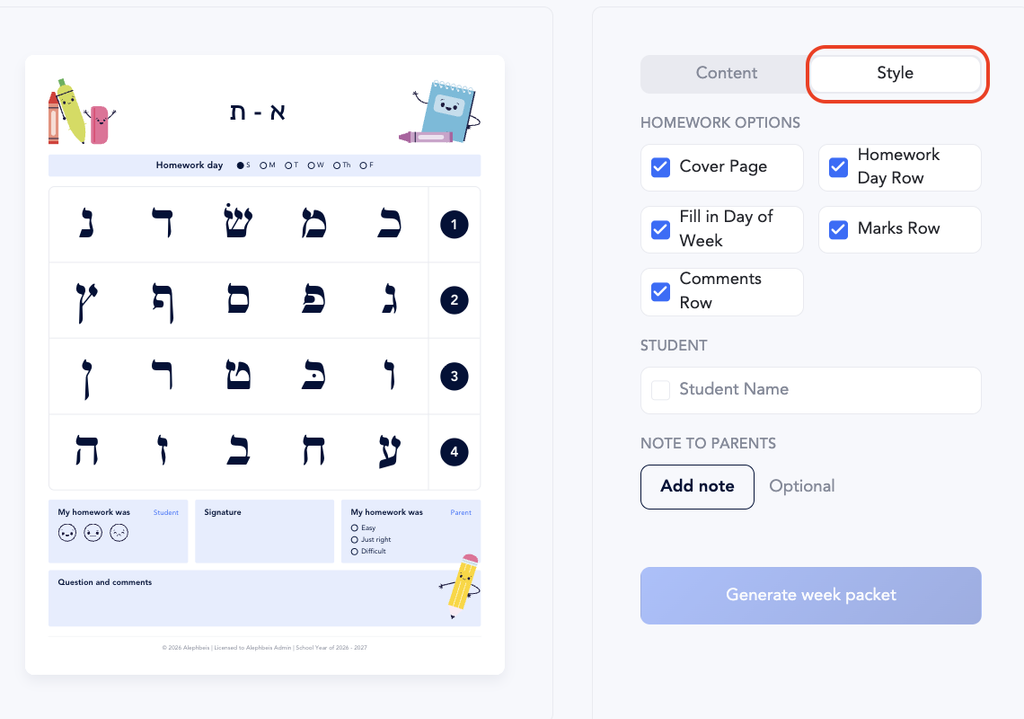
Available options include:
- Cover Page – include a cover page with the homework packet
- Homework Day Row – include the row showing the homework days
- Fill in Day of Week – indicate the day of the week for the assignment
- Marks Row – include the marks row
- Comments Row – include the Questions and Comments section
- Student Name – add the student’s name to the homework
- Note to Parents – add a note for parents
Adding the Student Name is especially helpful when preparing individualized homework for several students at once. Each student’s packet can be clearly identified.
6. Create Homework for Each Day
After you finish creating the homework for one day, repeat the process for the remaining days.
You can select different skills for different days.
For example, you might create a week like this:
- Day 1: Review letters in Print
- Day 2: Review the same letters in Script
- Day 3: Review the letters in Rashi
- Day 4: Practice Skilled Endings
This allows you to create homework that follows a student’s individualized profile and changes as their needs change.
Smart Homework Automatically Fills in the Homework Day
One advantage of Smart Homework is that the Homework Day is filled in automatically based on the day you assign the homework.
You do not need to manually fill in the Homework Day circle as you do with Classic Homework.
7. Generate the Week Packet
Once you have selected the content and settings for all of the days, select Generate Week Packet.
Your customized homework packet will be generated with the selections you made for each day.
For information about the Homework Day, Homework Chart, reviewing homework, rewards, and parent communication, see Homework: Tracking, Reviewing & Communication.
Related Article: Classic Homework – Standard homework aligned with the Daily Lesson Plans.