
Info Card
Once the Smart Test is finished, an Info Card pops up on the screen!
This card gives teachers an instant snapshot of the student’s performance, including:
Scoring: Mark the student’s response on each card:
- X — Incorrect response
- ! — Self-correction or hesitation
- ✓ — Correct response
Comments: Enter a comment describing the nature of the error. Was it a mistake with the letter, nekudah, or skill? Comments provide the information you need to identify and address skill deficits.
Accuracy Score: The student’s score on the test.
Errors: The total number of mistakes made.
Test Time: How long it took the student to complete the test.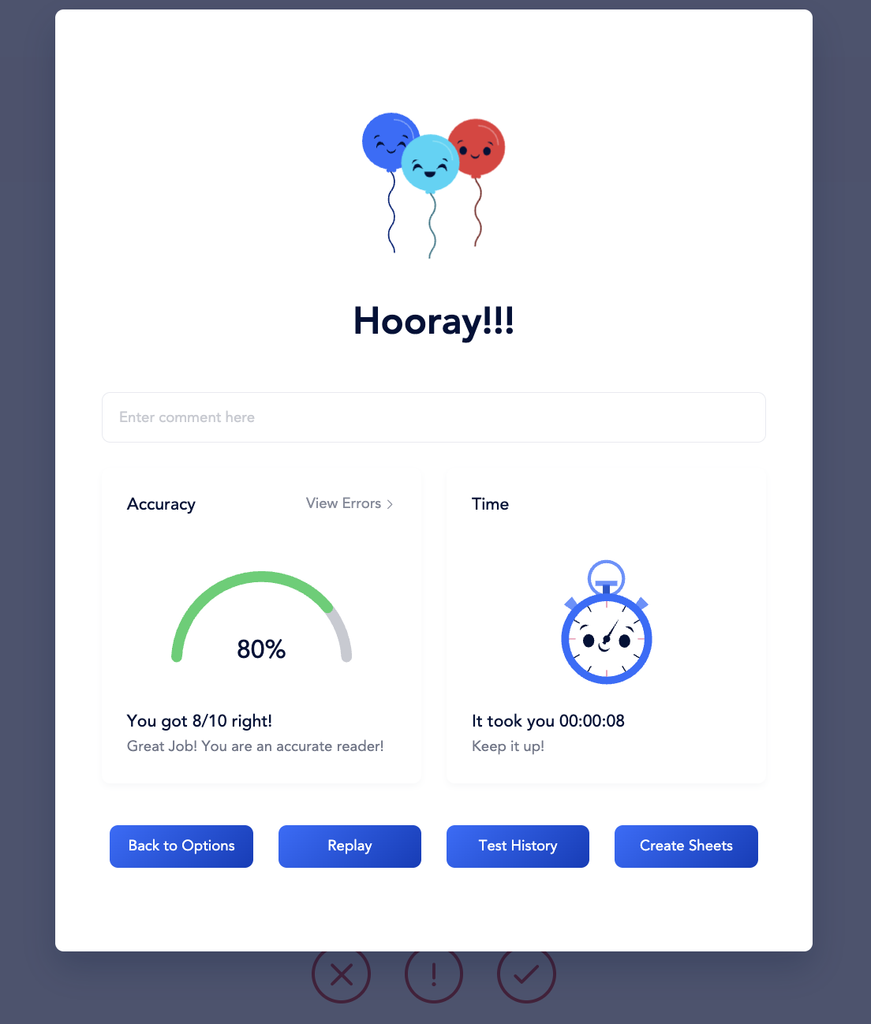
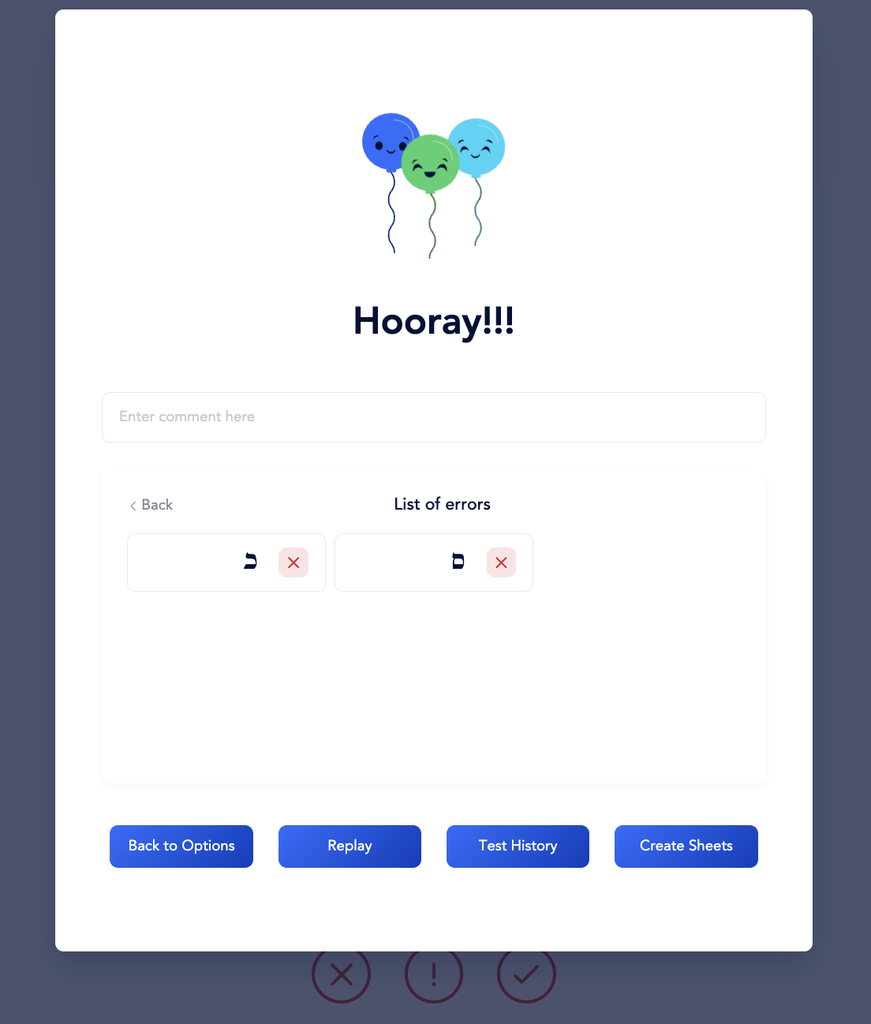
Review and Correct Errors: Select View Errors to see the student’s mistakes and self-corrections.
Additional Test Options
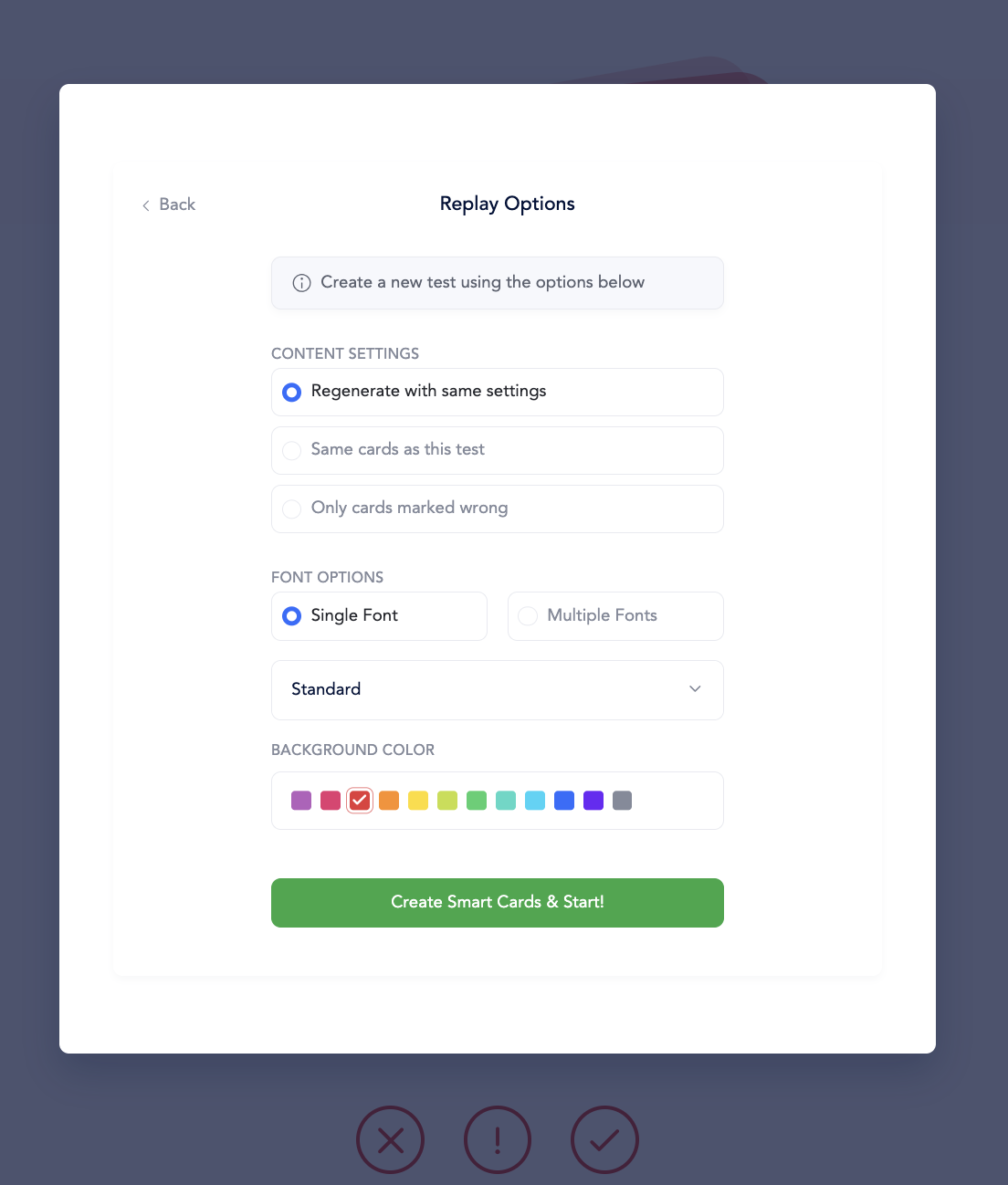
Teachers can also use the following options:Replay: Create another set of Smart Cards using the same skill set as the test. You can choose to:
- Use the same settings with different words.
- Use the same words from the current test.
- Include only words the student marked incorrectly. You can choose to include Incorrect Responses, Self-Corrections, and/or Hesitations.
- Change the font to Print, Script, Rashi, or Dyslexic.
- Change the color: Choose a different color for the cards. Students love being able to choose their own color!
 Test History: View the student’s previous assessments.
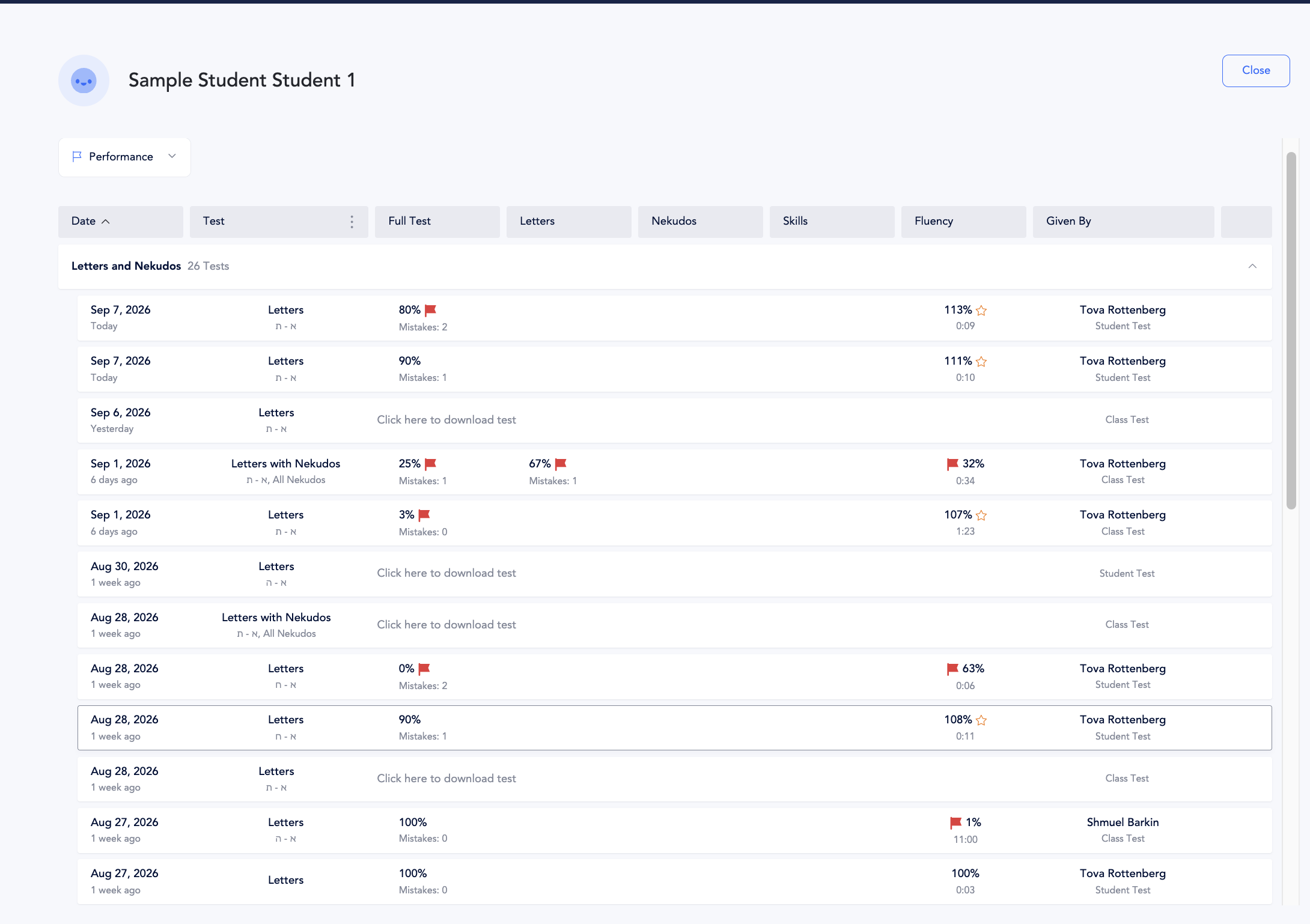 Select any assessment to view the test details and settings, retest the student, create a Replay, create Smart Sheets, and access the other options available for that test.
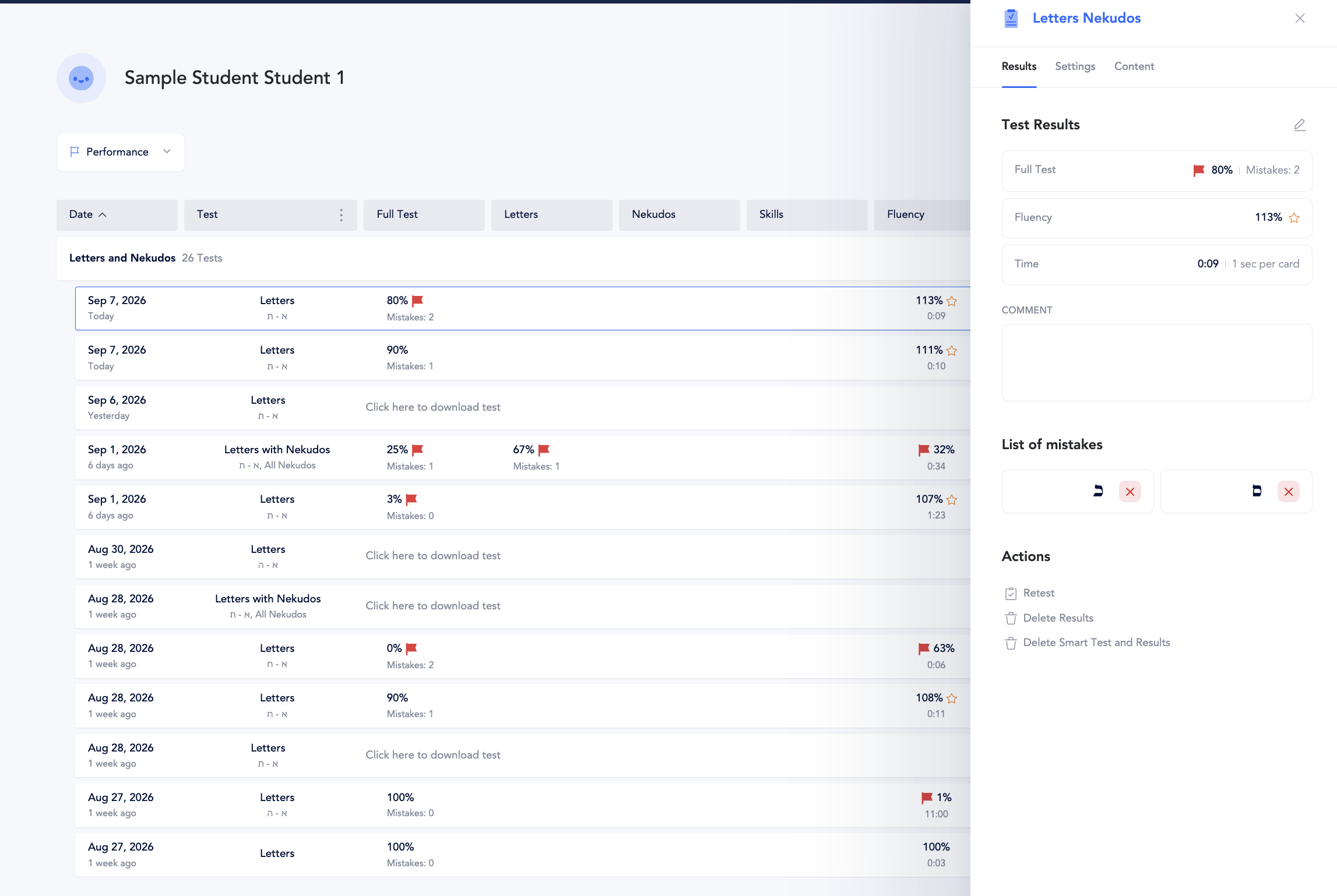 Create Sheets: Create printable Smart Sheets using the same settings and skill set as the test. You can either create sheets for additional practice or assessment, or create sheets based on the skills and items the student had difficulty with.
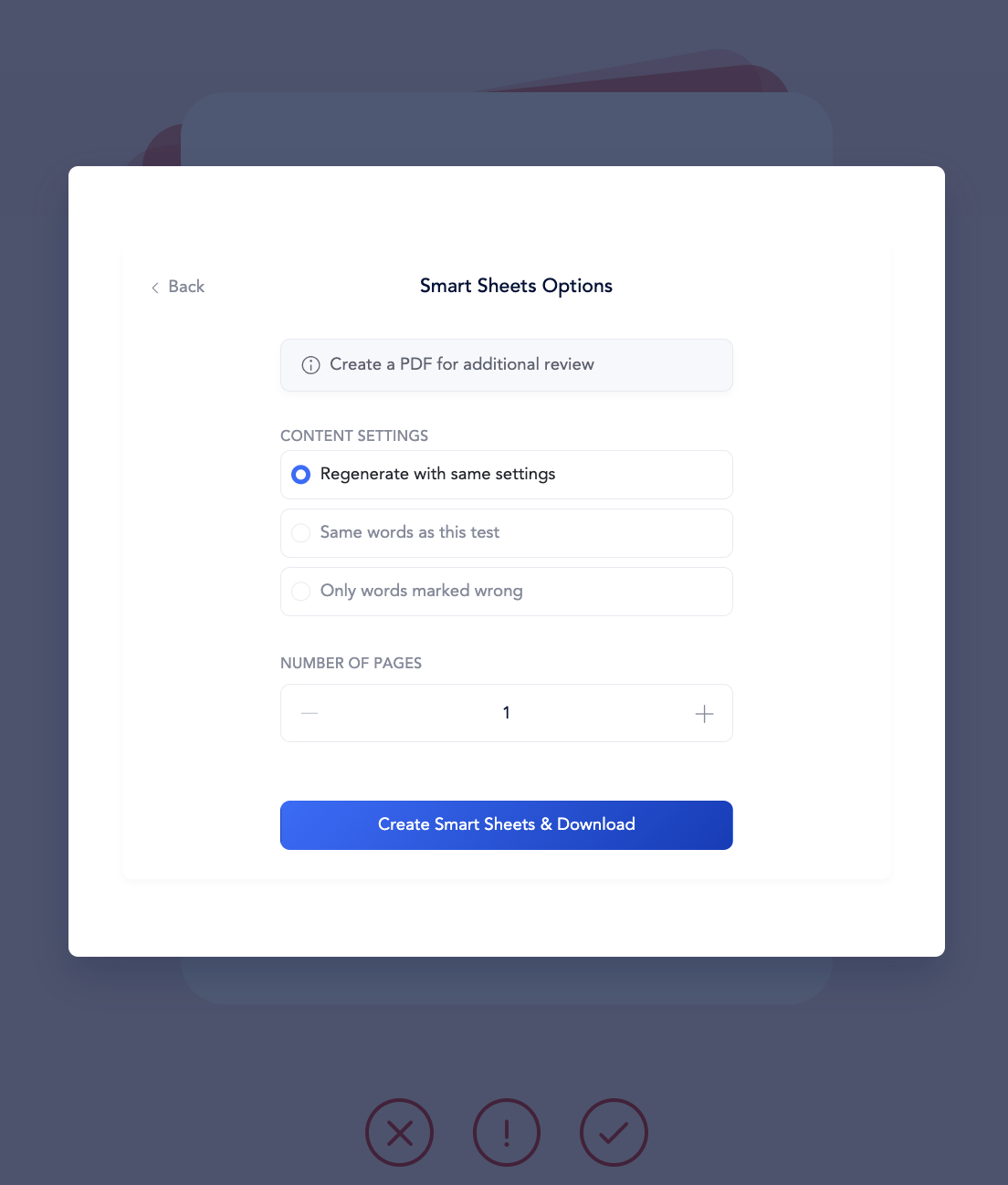 You can choose to:
- Use the same settings with different words.
- Use the same words from the current test.
- Include only words the student marked incorrectly. You can choose whether to include Incorrect Responses, Self-Corrections, and/or Hesitations.
- Select how many pages of Smart Sheets you would like to download.
Track Progress
Test results are saved in the student’s profile, making it easy for teachers, schools, and parents to track progress over time.
The Smart Test also archives the student’s errors, allowing teachers to retest the student on specific errors or the entire set of items from the original test.
FYI: Make It Fun!
Smart Cards have a few fun interactive features that teachers can use to make practice and testing more engaging:
- Change the color: Click the balloons on the card to change its color. Students love being able to choose their own color!
- Celebrate a new record: Click the timer to make it do a little jig and change colors. Some teachers use this as a fun reinforcer when a student beats their previous best time.