
Smart Tests facilitates the seamless creation of personalized tests tailored to your chosen criteria. Test results are automatically integrated into student profiles.
When testing the entire class, create a Smart Test from the Class Page. See this article.
When testing an individual student, create the Smart Test from the Flashcards tab.
Are you looking for a way to create custom flashcards tailored to the unique learning needs of the child you’re assisting?
Imagine being able to pinpoint the exact skill set your student needs to improve on, and then personalize the flashcards to target the skill, letter, and nekudah that they find challenging.
Introducing Alephbeis Flashcards – a tool that allows you not only to produce flashcards based on precise criteria but also to assess your student’s progress, store this information in their profile, and effortlessly recreate a set of flashcards using the same parameters.
Smart Tests for individual students:
- Select: Flashcards
- Select the skill set
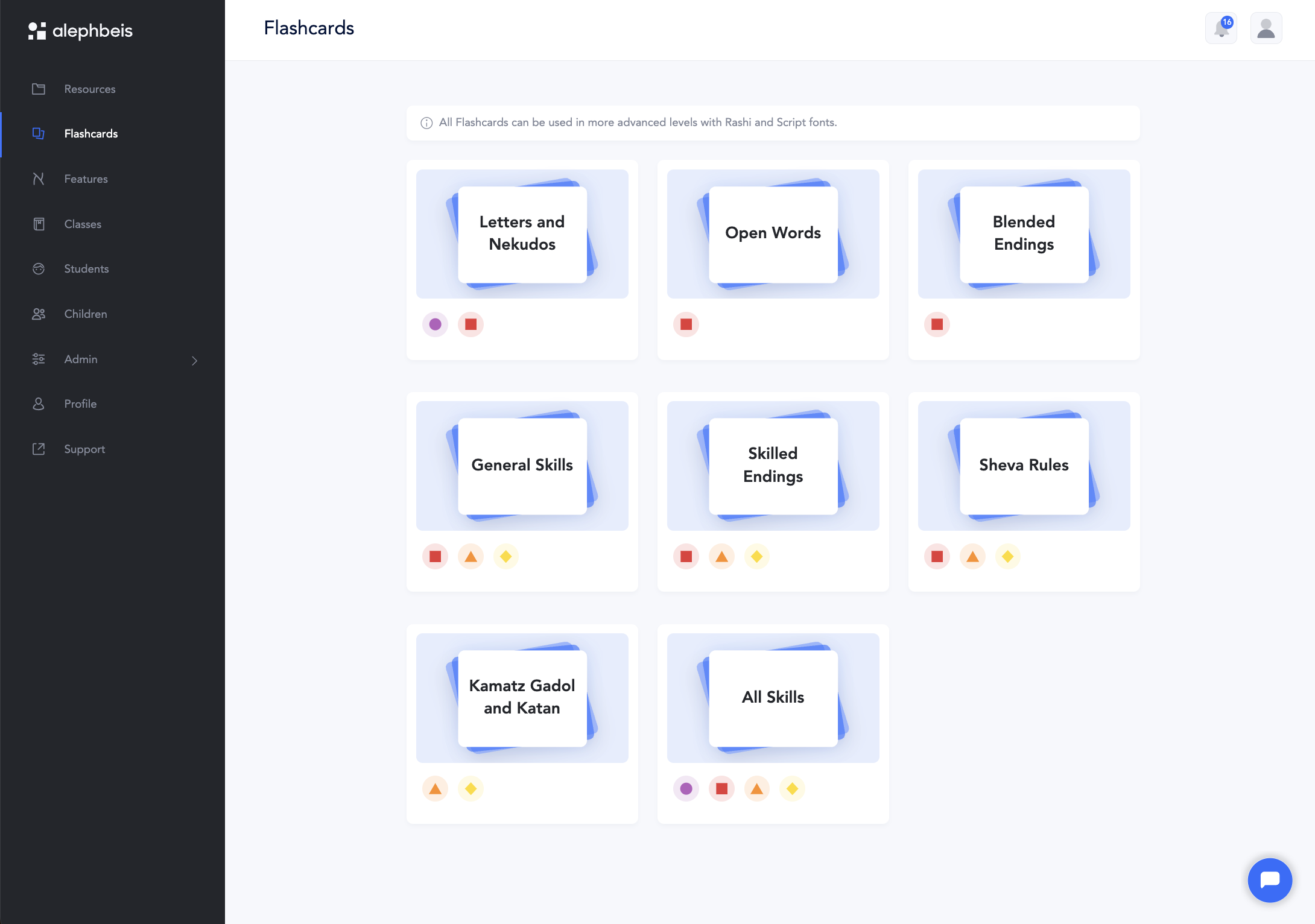
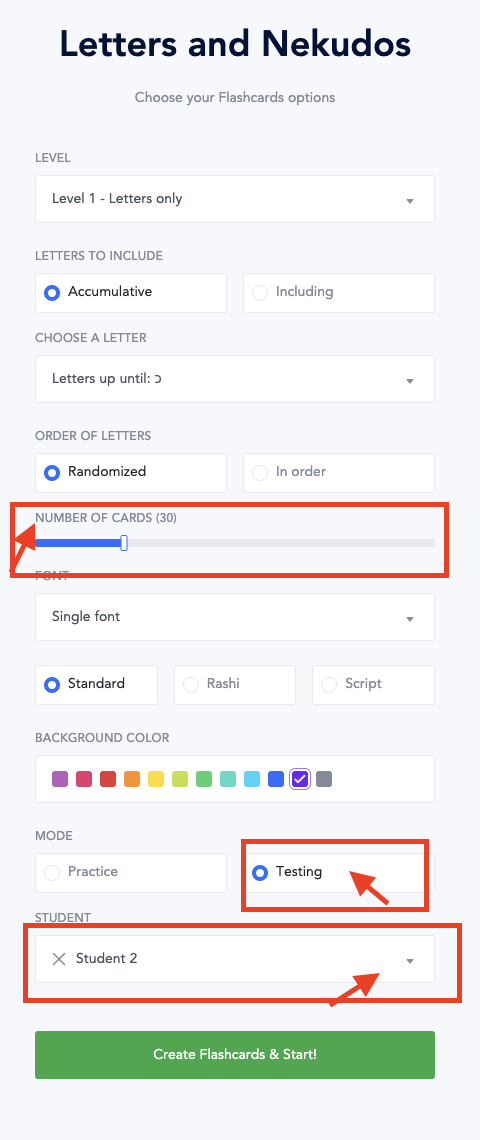
- Choose the criteria you want to incorporate into the assessment.
- Specify the number of words to be included in the assessment. (The default is 30 words)
- Select Testing mode
- Select Student
- Select: Create
See this article on the information card that pops up after the test is complete.
Q&A
Question: How do I access the flashcards for my students?
Answer: Once a teacher is assigned to a class or a new child is added to the Learning Portal with parent information, the user (teacher or parent) receives a link to access the Learning Portal. After logging in and setting up your password, simply navigate to the Flashcards section to generate the sets needed for working with your students.
Question: Why don’t I see my student’s name in the dropdown menu?
Answer: You’ll only see your student’s name in the dropdown menu after they’ve been uploaded to the Learning Portal and assigned to a class.