
Administering a Smart Test Prepared in Advance
This article explains how to administer a Smart Test that was created for a student ahead of time.
Overview
Smart Tests can be created and administered at any time.
Depending on your purpose, here are the best ways to create them:
- To create and administer immediately:
Create the Smart Test directly from the Flashcards page and use Testing Mode.
(See the related article: Smart Test – Individual Student.) - To administer to an entire class:
Create the Smart Test from the Classes page.
(See the related article: Smart Tests – Class) - To prepare a test for later (for homework or a future session):
Create it in advance from the Students page.
(See the related article: Assigning a Smart Test in Advance)
Both teachers and parents can administer Smart Tests that were prepared ahead of time.
For Teachers
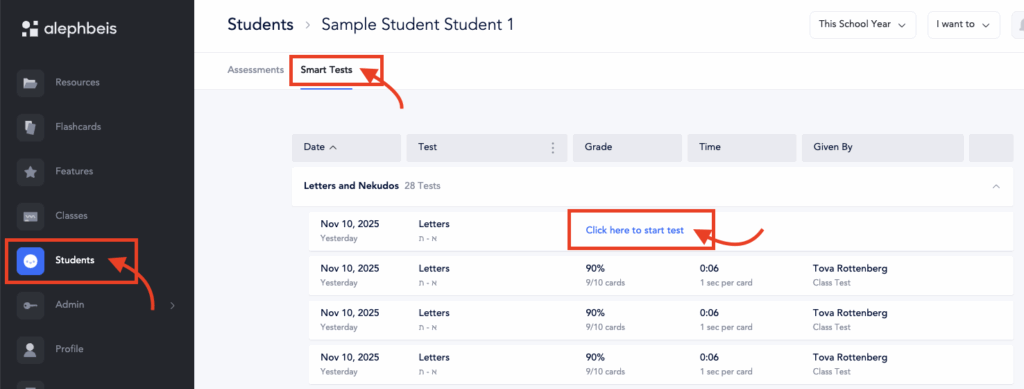
- Go to the Students tab.
- Select the student you’d like to test.
- Click the Smart Test tab.
- Locate the test you’d like to administer.
- Click “Click here to Start Test.”
For Parents
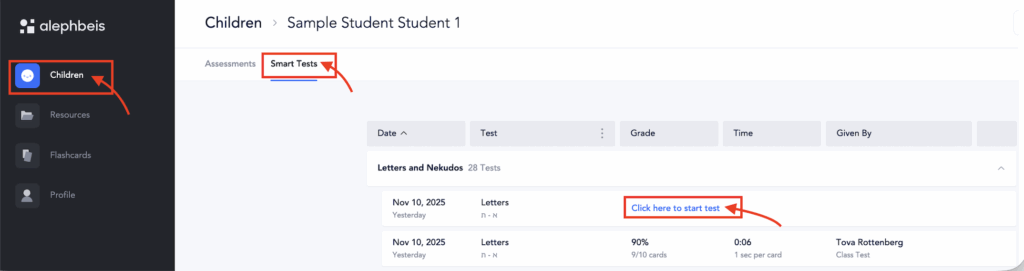
- Go to the Children tab.
- Select the child you’d like to test.
- Click the Smart Test tab.
- Locate the test you’d like to administer.
- Click “Click here to Start Test.”
During the Test
As the student reads, score responses in real time:
- ✔️ Checkmark – The word was read correctly.
- ! Exclamation – The student self-corrected.
- X – The student made an error.
After the test:
- Click “View Errors” on the info card to review mistakes.
- You can:
- Replay the same set using the same criteria, or
- Generate a new set based on the student’s errors.
For more information on the info card, see this article: Smart Tests – Information Card
For information on retesting at a later point, see this article: Smart Tests – Retesting