
Smart Test Reports allow you to review and print student performance from Smart Tests in a variety of formats.
There are two ways to print reports:
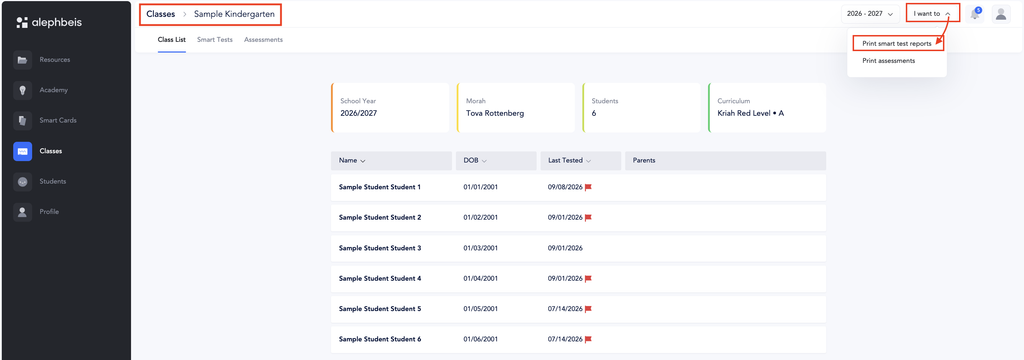
- For one class: Go to the Classes tab and select the class. Then click I Want To. menu.
- For multiple classes: Go to the Classes tab and click I Want To to select the type of report you want to print.
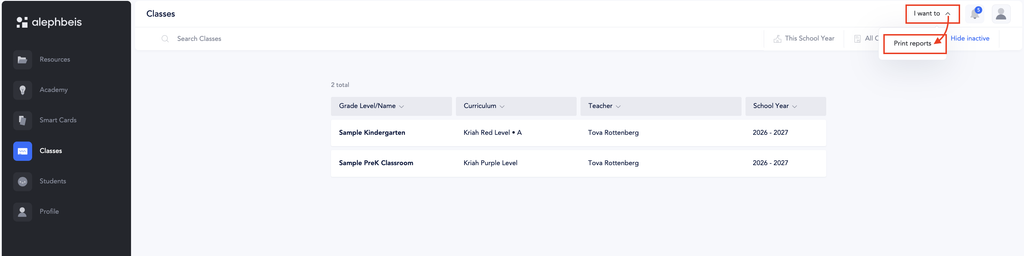
Quick Tip: If you are printing reports for just one class, open the class first. If you want to print reports for multiple classes at once, use the I Want To menu directly from the Classes tab.
Which Report Should I Use?
When you select I Want To, you may see three report options:
| Report | What is it for? |
|---|---|
| Smart Test Reports | Reports based on students’ Smart Test results. |
| Class Report/Print Reports | Reports from the traditional Assessments. The Assessments themselves will be phased out at the end of the school year, but all completed assessment results and reports will remain available for viewing and printing. |
| Student Reports | Individual reports for each student. |
Print Smart Test Reports for One Class
To print Smart Test reports for a specific class:
- Go to the Classes tab.
- Select the class you want to print reports for.
- Click I Want To in the top-right corner of the screen.
The I Want To menu may show different options depending on which tab you are viewing within the class, such as Class List, Smart Tests, or Assessments.
However, Print Smart Test Reports is always available as the first option in the I Want To menu, regardless of which tab you are viewing. - Select Print Smart Test Reports.
Choose Your Report Options
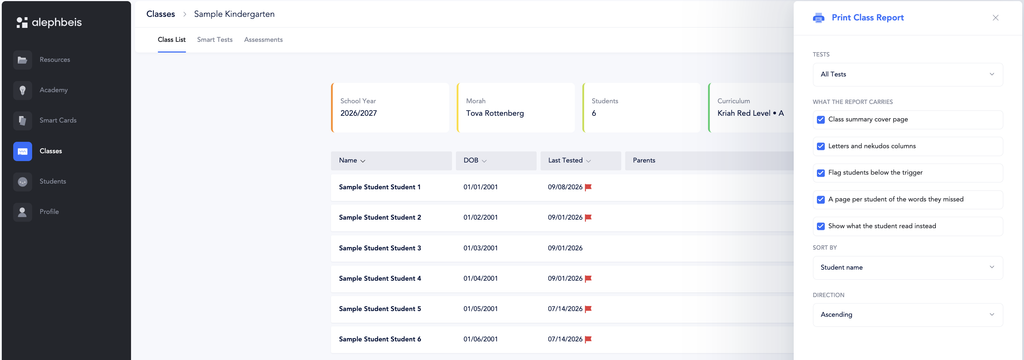
After selecting Print Smart Test Reports, you can choose:
- Which Smart Tests to print – Select individual tests or select all Smart Tests.
- What to include in the report – Choose the information you want included.
- How to sort the report – Select how you would like the students or results organized.
Once you have selected your options, generate the reports and print them.
Print Reports for Multiple Classes
You can also print reports for multiple classes at the same time.
- Go to the Classes tab.
- Click I Want To in the top-right corner of the screen.
- Select the type of report you want to print.
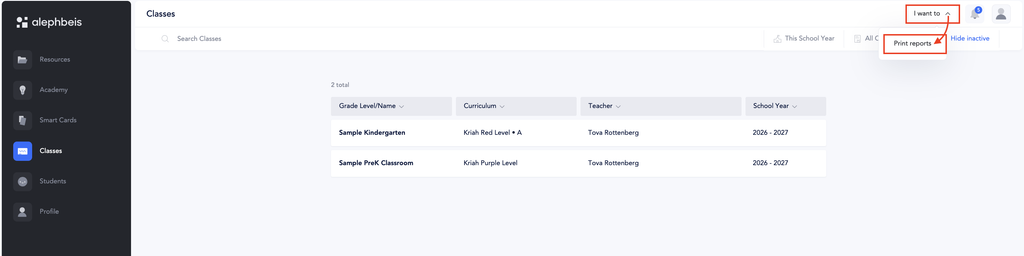
You can select:
- Class Report – Reports from the traditional Assessments.
- Student Reports – Individual reports for each student.
- Smart Test Reports – Reports based on Smart Test results.
Choose Your Report Options
When printing reports for multiple classes, you can select:
- School Year
- Curricular Level
- Classes
- Tests
You can select individual tests or select all tests available for your selected criteria.
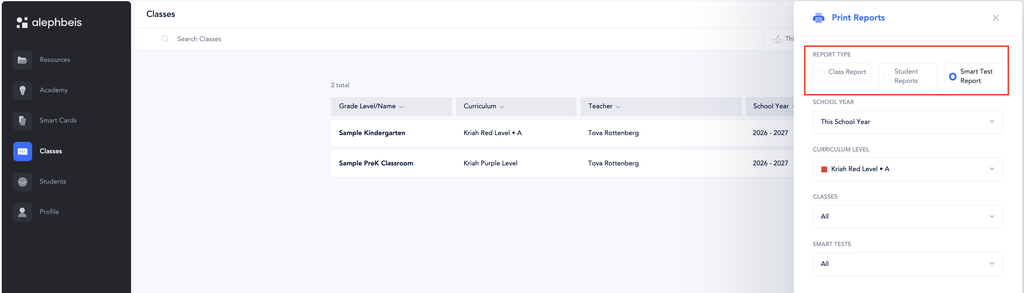
After making your selections, generate the reports and print them.
What Is Happening to the Traditional Assessments?
The traditional Assessments are the static assessments that have been used until now.
The Assessments themselves will be phased out at the end of the school year as Smart Tests become the primary assessment tool.
Your historical assessment data will not be lost. Even after the traditional Assessments are phased out, you will still be able to view and print reports from completed Assessments.
Smart Test Reports Are Evolving
Smart Test Reports are continuing to evolve based on teacher feedback. We are working on additional report formats and options to make the reports even more useful.
Coming soon, you will also be able to print instructional materials based on errors identified on Smart Tests. This will make it easier to use assessment results to guide instruction and provide targeted practice.