
When Can You Change a Test Date?
You can easily change the date a test was given, both before and after entering student data.
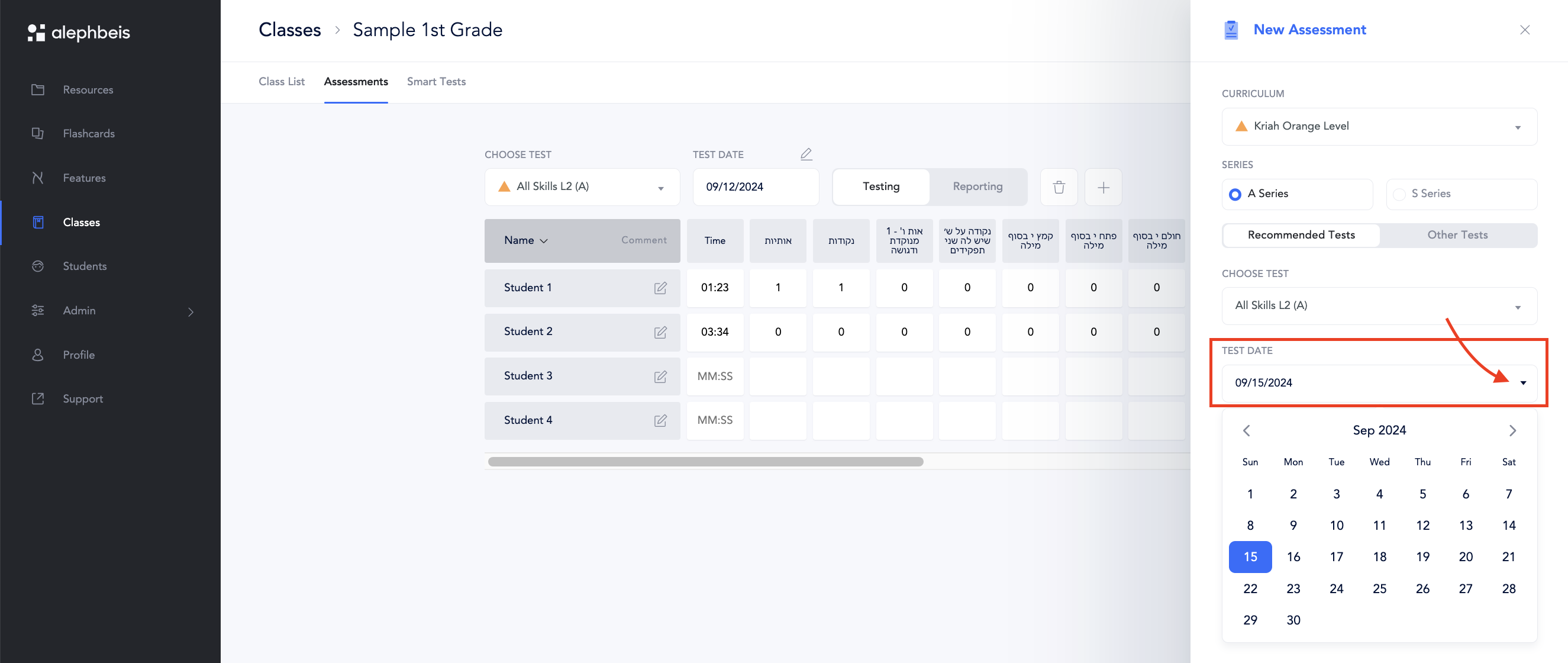
Before Entering Data:
- When creating a new test or a retest, the ‘Test Date’ will default to the currrent date.
- Look for the “Test Date” field. Click the arrow next to it and choose the actual date the test was given from the calendar.
After Entering Data:
- Find the test you want to edit.
- Select ‘Testing’
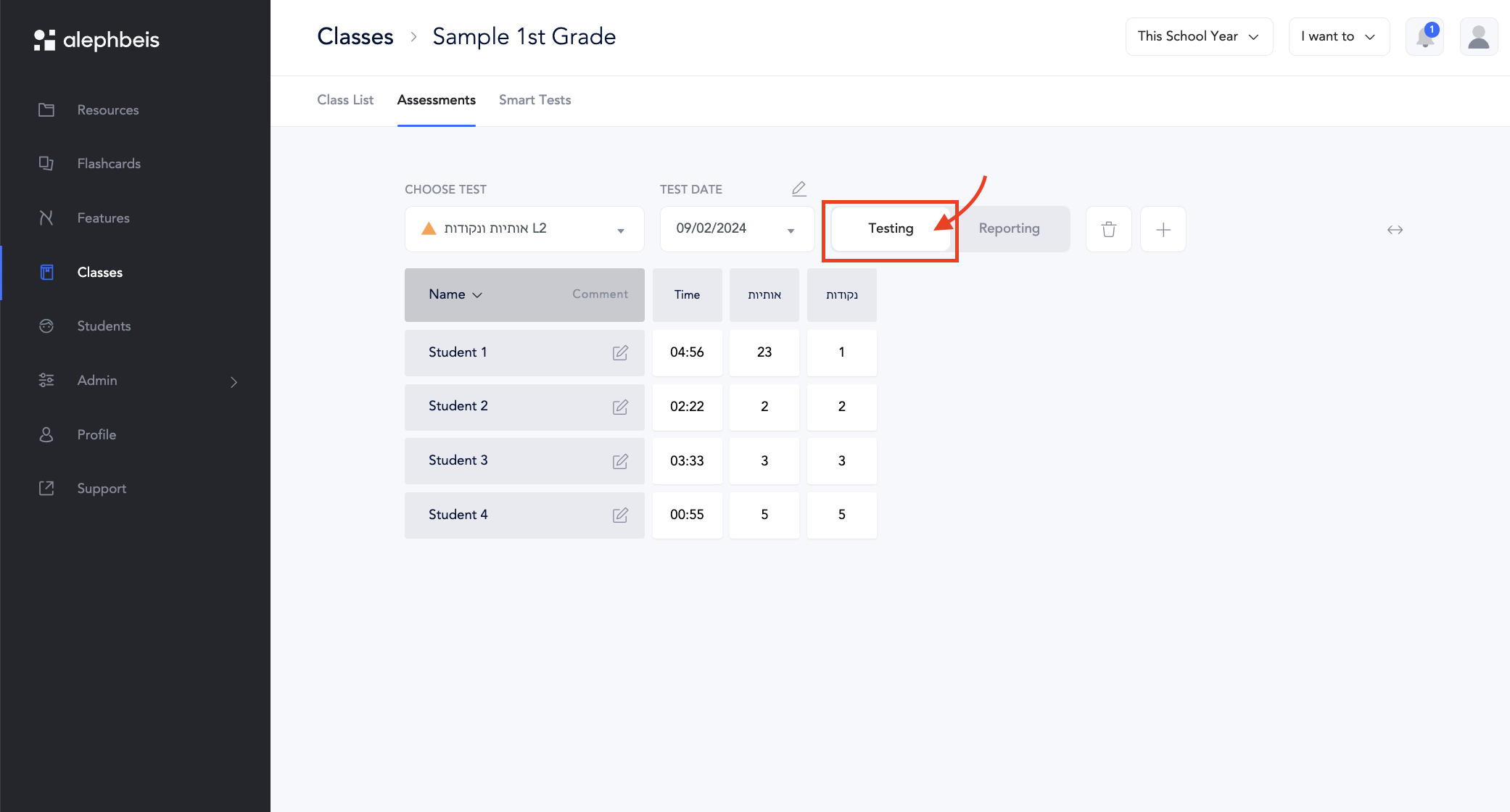
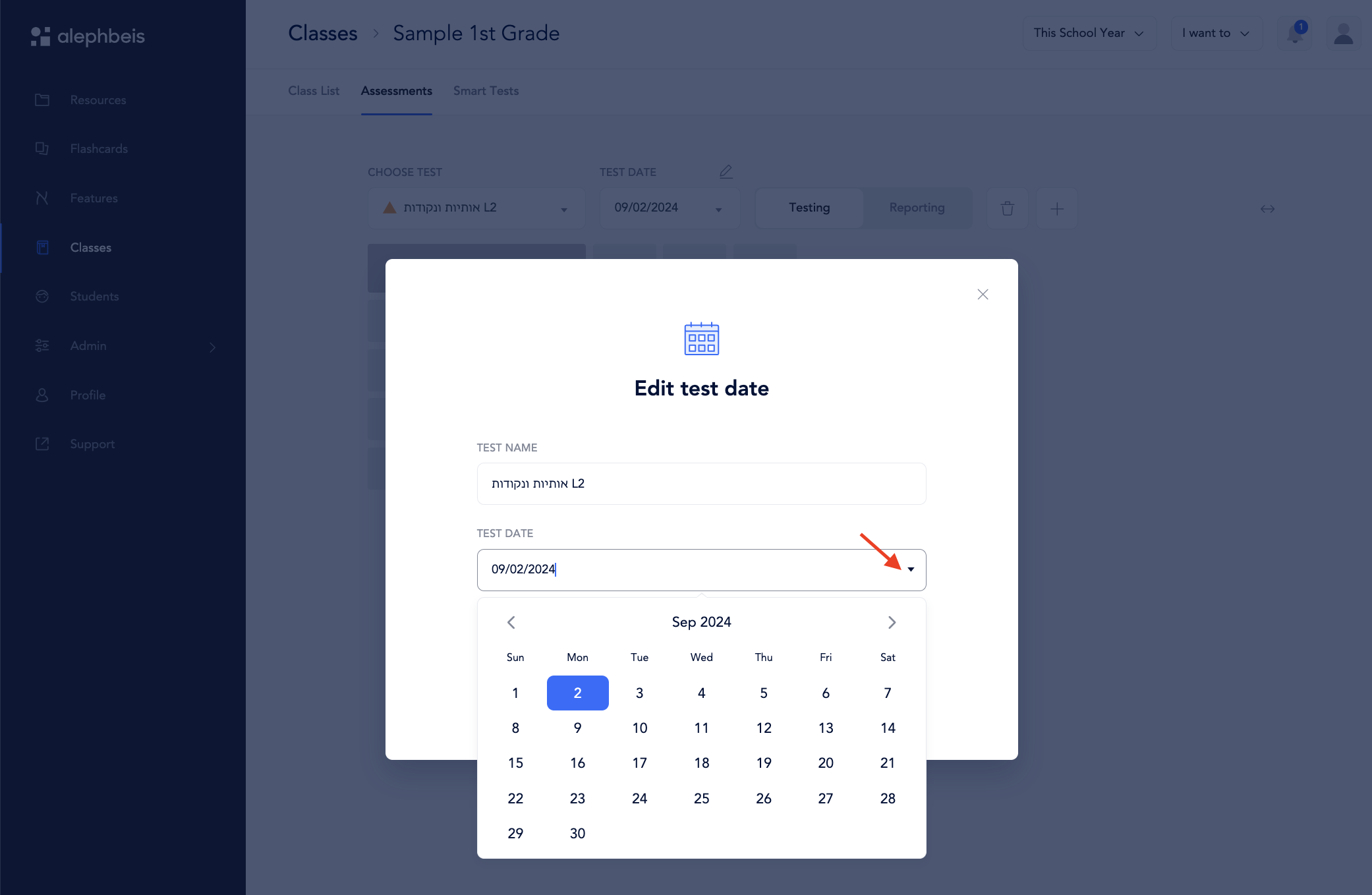
- Click the arrow beneath the pencil icon to edit the test date.

- Click the arrow next to the test date and select the correct date from the calendar.
Please note: By default, the test date will be the day you enter the assessment.
Click on this link for an article on how to edit test grades.