You can view class reports or student reports from previous school years for an individual student, class, or for all classes at a curricular level. Follow these steps to generate reports:
- Navigate to the “I want to” menu: This is located in the top right corner.
- Select “Print Reports.”
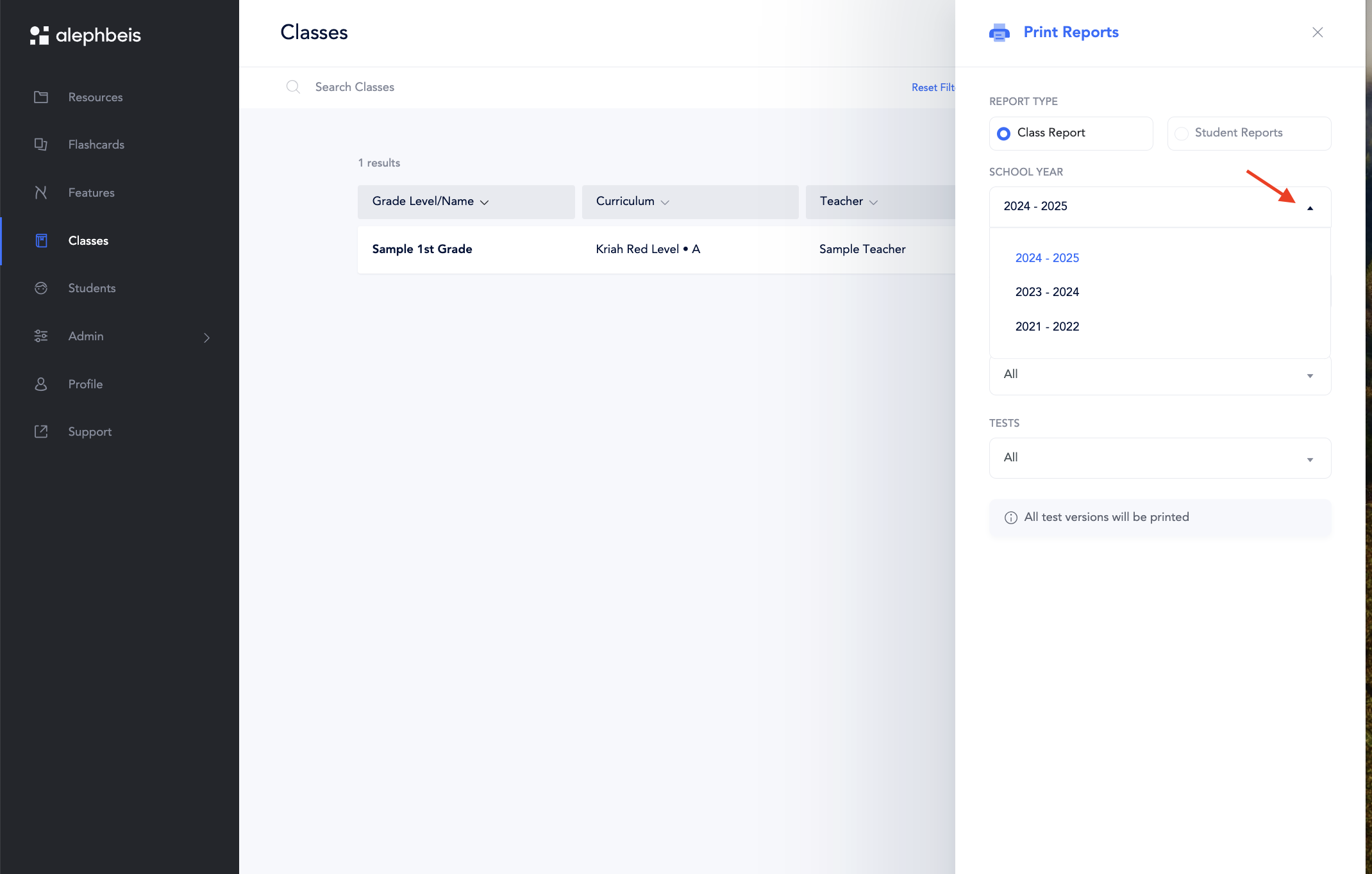
- Choose report type: You can print either “Class Reports” or “Student Reports.”
- Specify the school year: Select the year you’re interested in.
- Choose curricular level: Specify the desired level (e.g., Red, Orange, Yellow
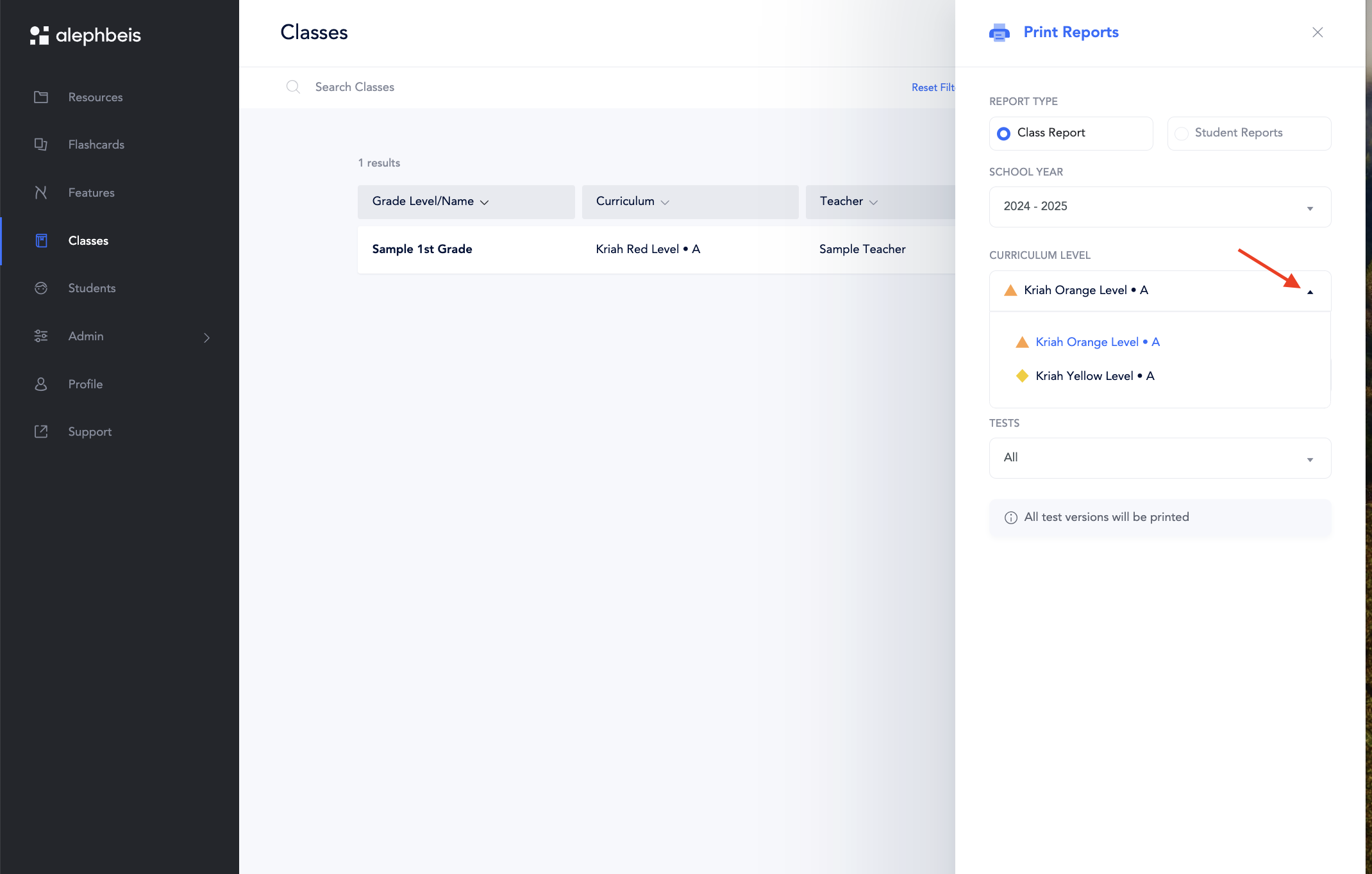 ).
). - Customize your report:
- Class Reports: By default, all classes and tests are included. You can manually select specific classes or tests.
- Student Reports: Similarly, all students and tests are included by default. You can select individual students or tests.
Once you’ve made your selections, print the report.
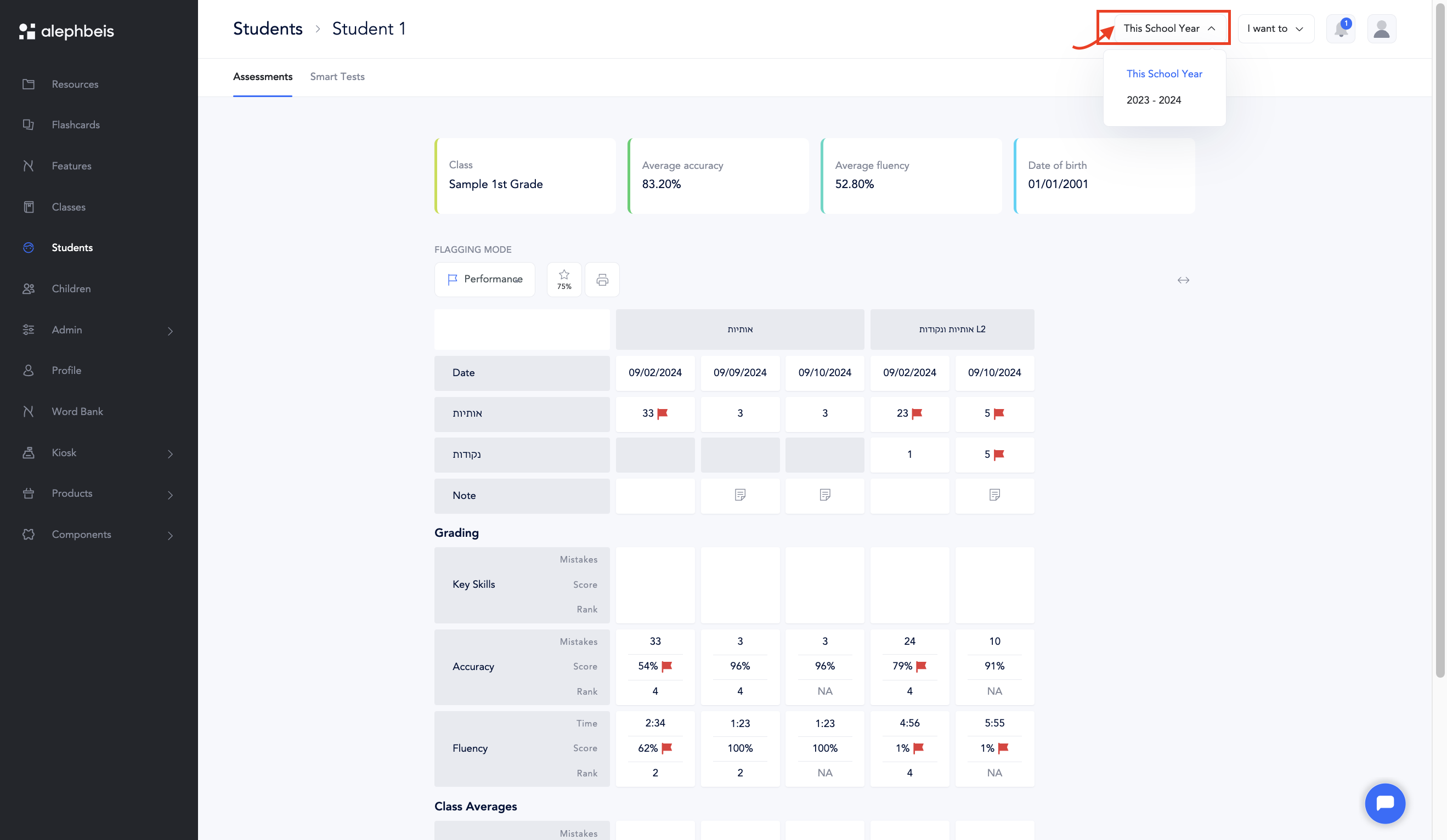
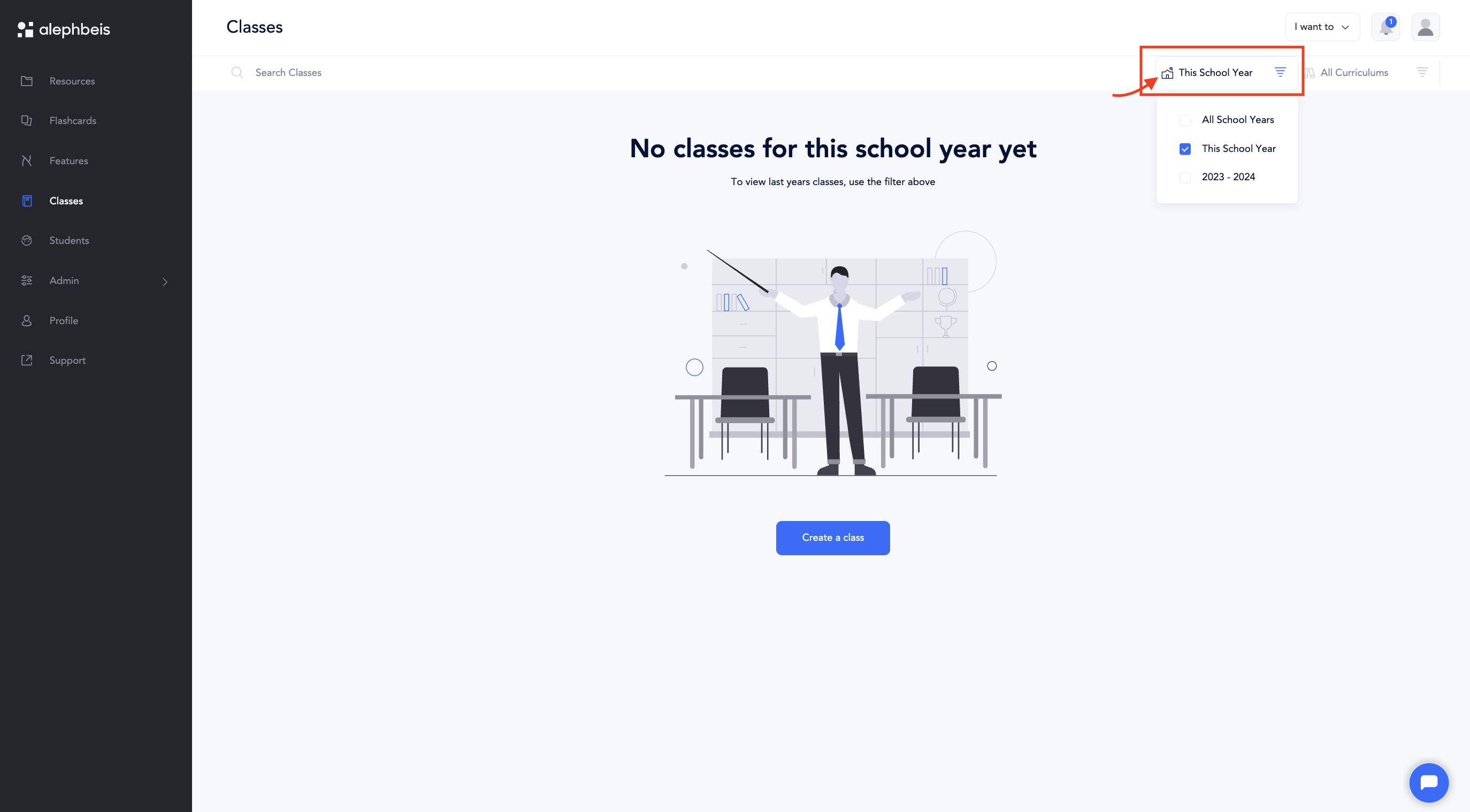
Additionally, you can access information from previous school years on either the class page or the student page. Simply click the button next to “This School Year” and a drop-down menu will appear with previous years. Select the school year you need from the list.
From the Classes Page:
Accessing reports from previous school years before new classes are set up:
Accessing reports from previous school years after new classes are set up:
From Student Page:
Accessing reports from previous school years after before selecting a student:
Accessing reports from previous school years after selecting a student: