
For information on Smart Resources, see this article.
Question: What should I do if nothing is generated or downloaded after selecting ‘Generate and Download’?
Answer: If you encounter this issue, it’s likely due to a pop-up ad blocker preventing the download. To resolve this, click on the pop-up button as shown in the image and disable the blocker. 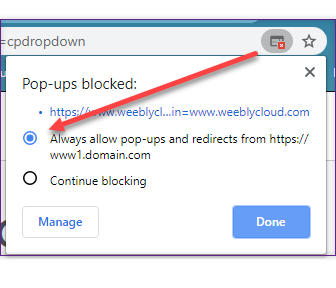 Once done, try generating and downloading again; it should work smoothly now!
Question: I need more than 3 pages for the students that I work with. How do I access more than 3 pages without needing to go through the selection process again?
Answer: After downloading the Smart Sheets, simply click on the ‘Back to Options’ button. Modify one aspect, like including or excluding words with skilled endings. Then revert to the initial selection. This action will generate new words meeting the same criteria originally chosen, allowing access to an additional than 3 pages.

Question: Is it possible to modify the font size or eliminate additional spacing?
Answer: Currently, the option to adjust the font size or remove extra spaces is not available. However, it’s worth noting that this feature is currently in Beta, and improvements are on the horizon! Stay tuned for enhanced functionalities in future updates!
Question: How do I change the font on the materials that I’m generating?
Answer: Choose the desired font from the font dropdown menu.

