Steps to View All Smart Tests for a Class
- Go to Classes
- Select the “Smart Tests” tab

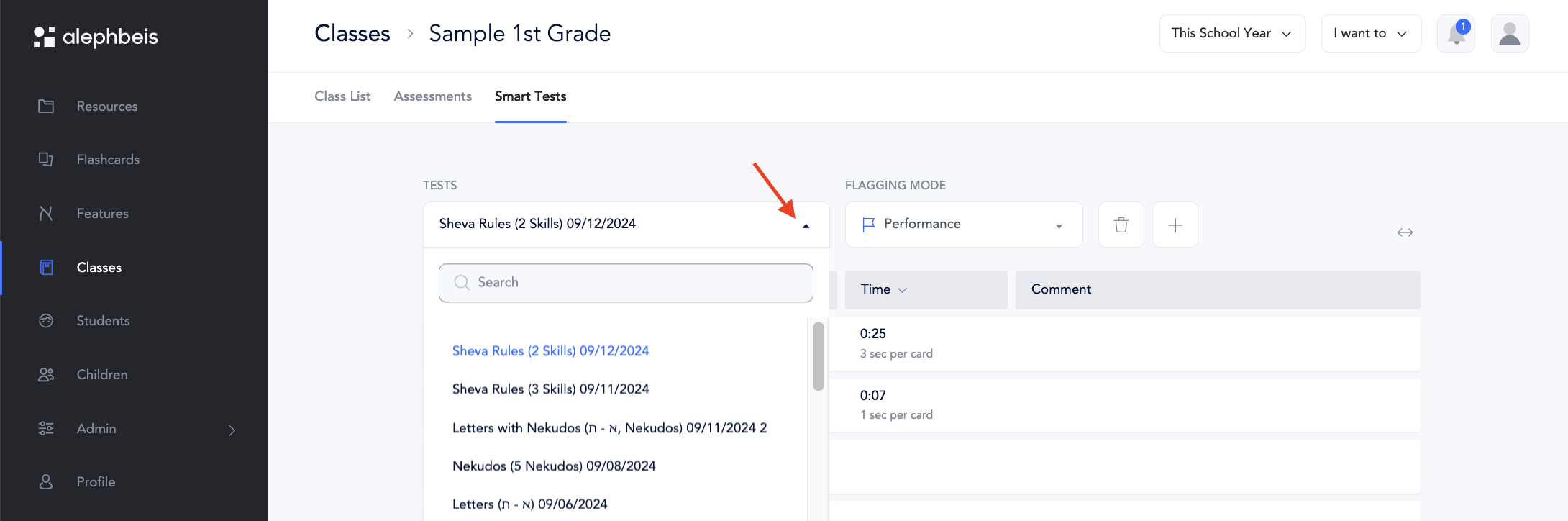
The most recent test will display by default. - To select a different test, on the box below ‘Choose Test’.
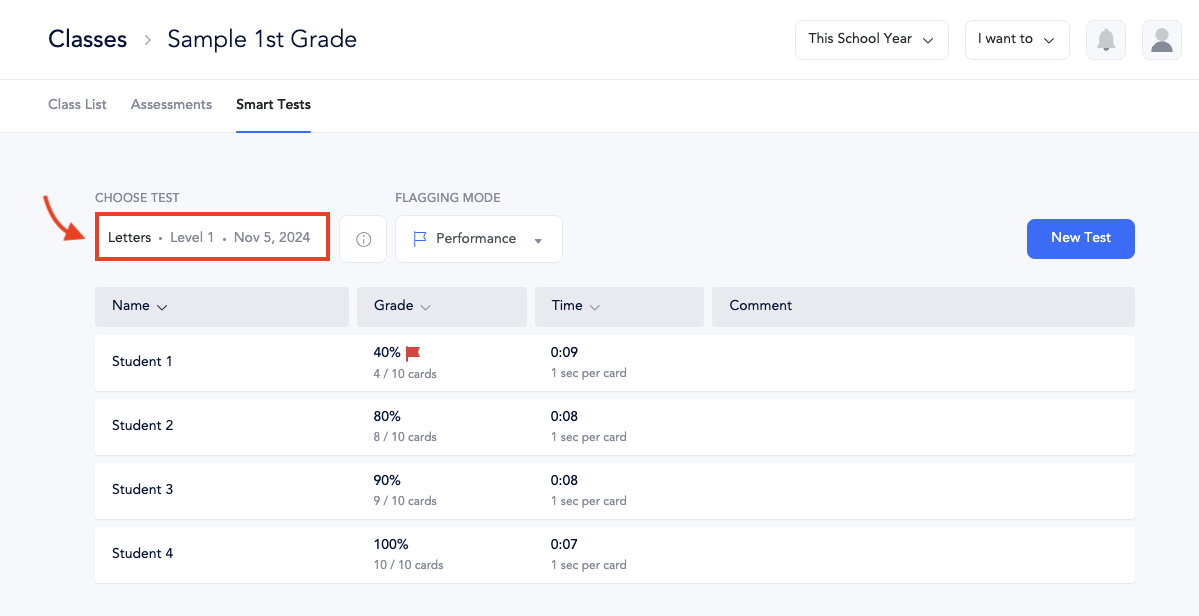
-
Choose from the list of all Smart Tests administered during this school year. The default view will display tests organized into skill sets like “Letters and Nekudos” or “Sheva Skills.”
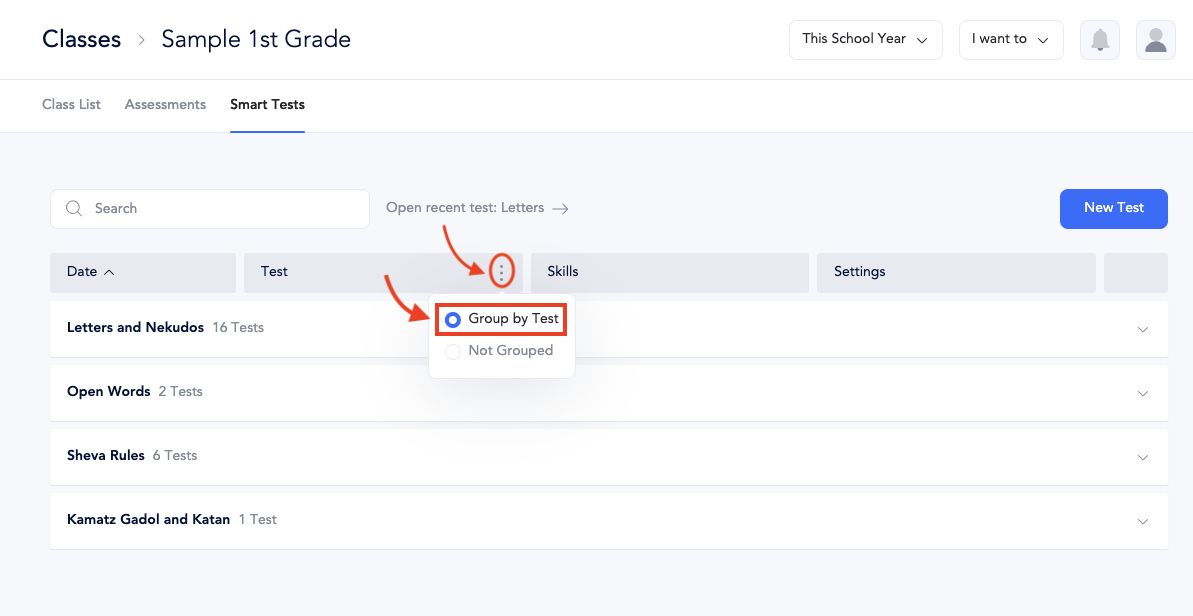
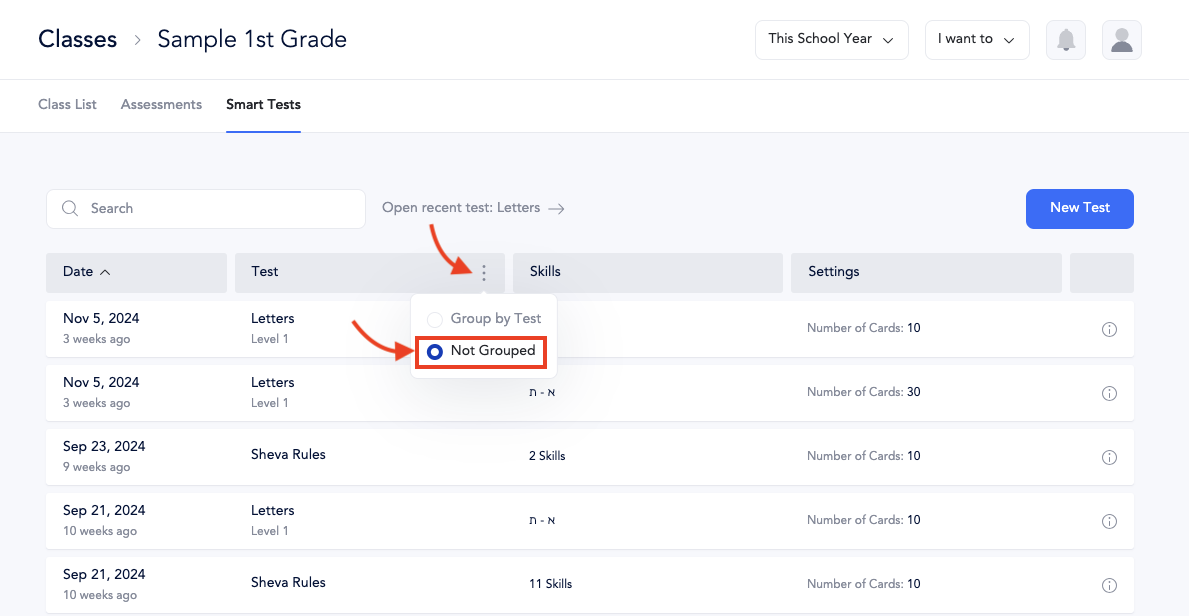
- To switch the view to chronological order, click the menu with three dots to the right of “Test” and select “Not Grouped.”
Steps to View All Smart Tests for an Individual Student
- Go to Students. By default, the page will show data for Assessments (paper tests).
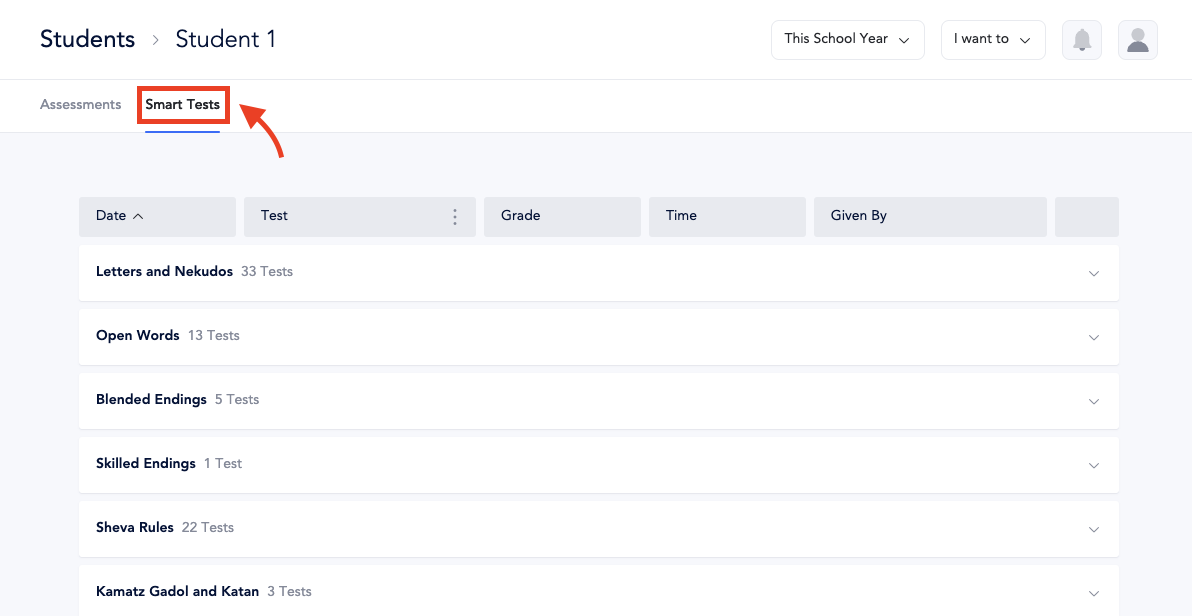
- Select the “Smart Tests” tab to switch to Smart Test data.
-
Choose from the list of all Smart Tests administered during this school year. The default view will display tests organized into skill sets like “Letters and Nekudos” or “Sheva Skills.”
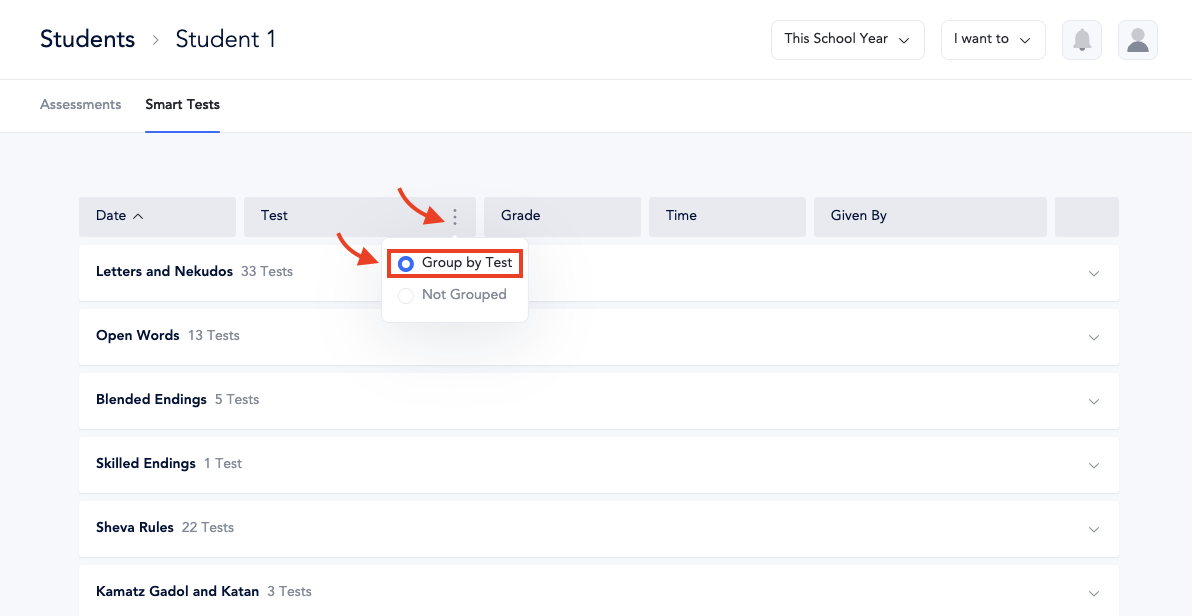
- To switch the view to chronological order, click the menu with three dots to the right of “Test” and select “Not Grouped.”
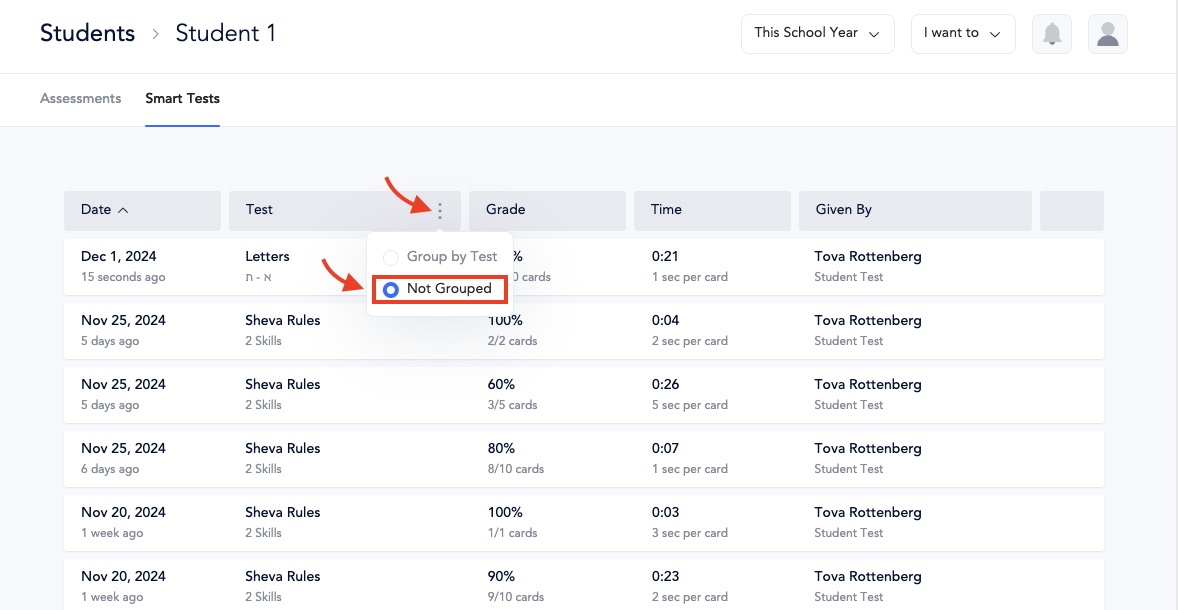
- From here, you can view, delete, or retest a student.
To learn how to retest a student, read this article.