Smart Tests can be assigned to an entire class or to an individual student. The way you access the test for grading depends on how it was assigned, but the grading process is the same for both.
Class Smart Tests
When a Smart Test is assigned from the class page, the same test is assigned to every student in the class. This allows you to assess the entire class using the same test and generate class reports.
Important: If you are planning to assess an entire class, assign the Smart Test from the class page. This ensures that every student receives the identical test and allows you to generate class reports.
Individual Student Smart Tests
When a Smart Test is assigned from an individual student’s page, the test is assigned only to that student.
Two Ways to Grade a Smart Test
Regardless of whether the test was assigned to a class or an individual student, you can grade it in two ways:
- Individual Grading: Quickly record whether each response is Correct, Incorrect, or Self Correct.
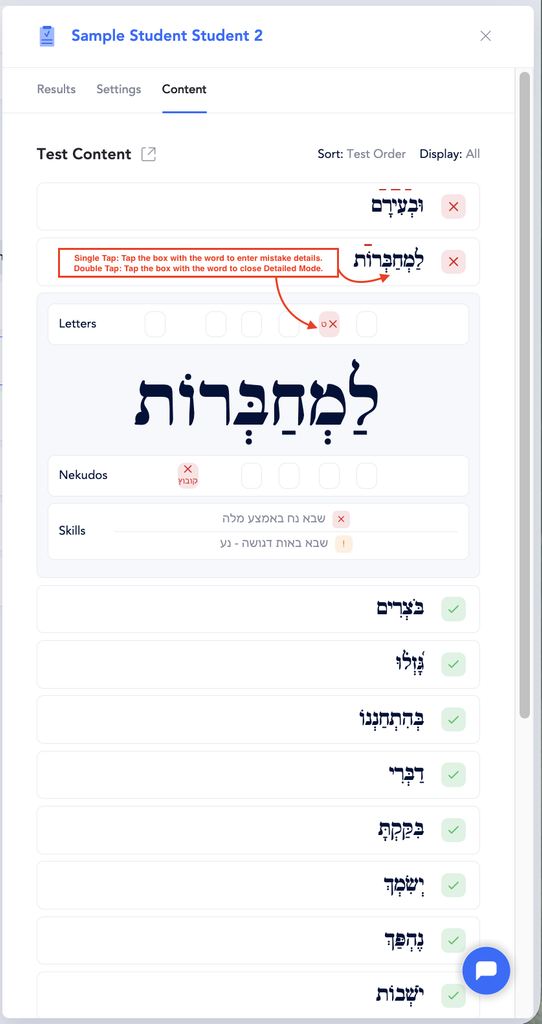
- Detailed Grading: Record the specific mistake a student makes in the Letters, Nekudos, or Skills sections.
The grading options are the same for class and individual-student Smart Tests. The only difference is where you access the Smart Test.
Access the Smart Test
To Grade a Class Smart Test
- Go to Classes and select the class.
- Select Smart Tests.
- The most recent test will be selected by default.
- To grade a different test, click Choose Test and select the test you would like to grade.
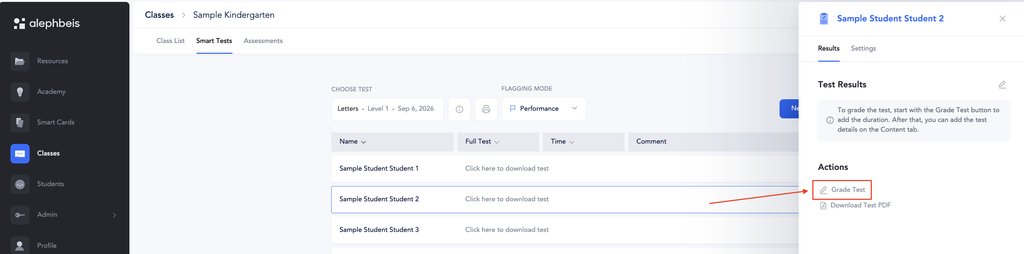
- Click on the student you would like to grade.
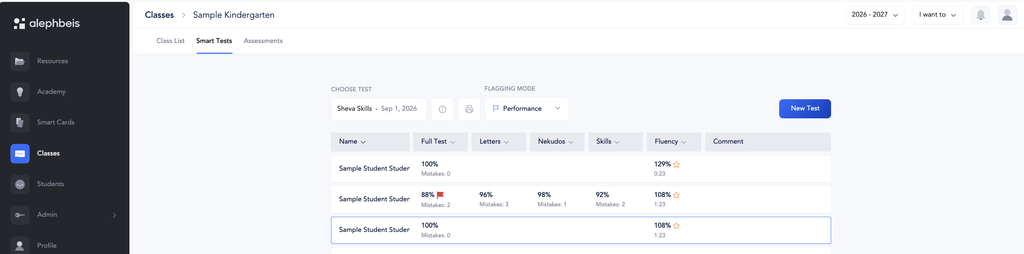
- The student’s test information card will appear.
- Click Grade Test.
To Grade an Individual Student’s Smart Test
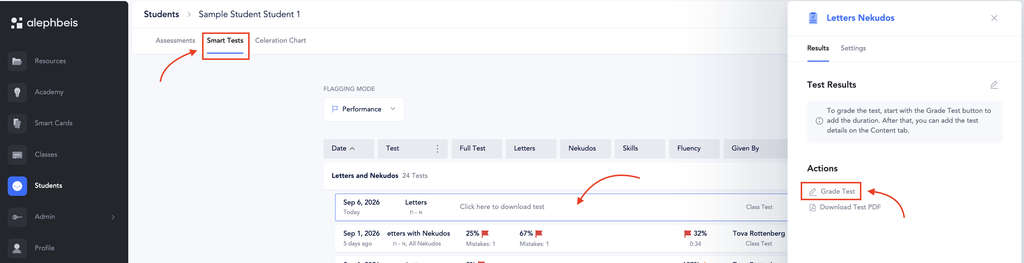
- Go to the student’s page.
- Select the student you need to grade.
- Select Smart Tests.
- Click on the test you would like to grade. The student’s test information card will appear.
- Click Grade Test.
After clicking Grade Test, follow the same grading steps below for both class and individual-student Smart Tests.
Enter the Test Information
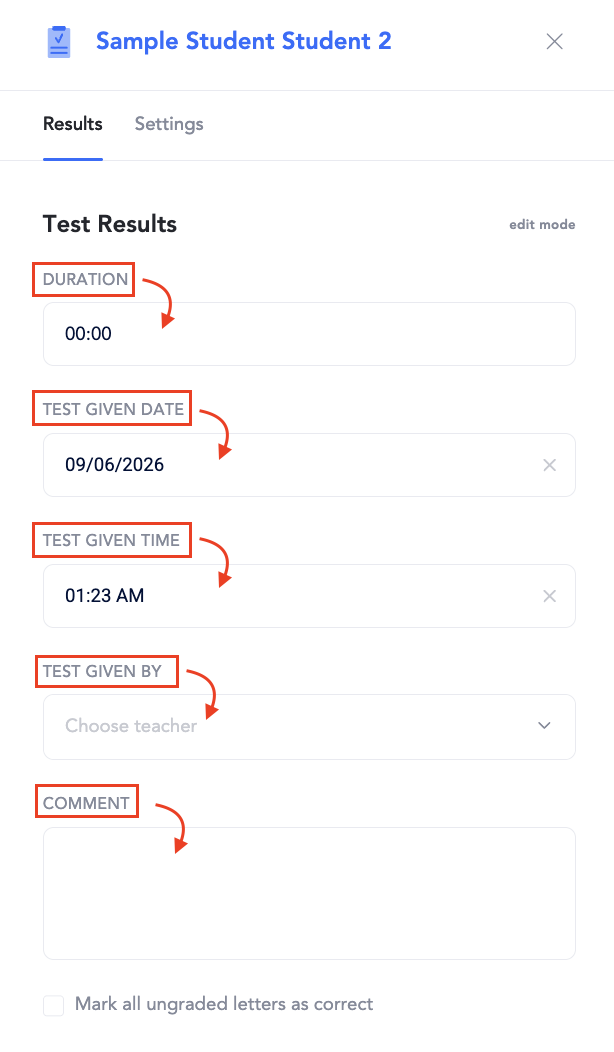
Before grading the test, enter the following information:
- Duration: Enter how long it took the student to complete the test.
This field will soon no longer be required. An option to automatically time the student while grading will also be added. - Test Given Date: Defaults to the date you are grading the test. Click the date to change it if needed.
- Test Given Time: Defaults to the time entered when grading. Click the time to change it if needed.
- Tester: Select the tester from the dropdown.
- Comments: Add any comments or notes as needed.
Grade Only Mistakes
If you are grading by recording only the student’s mistakes, check the box next to Mark all ungraded words as correct.
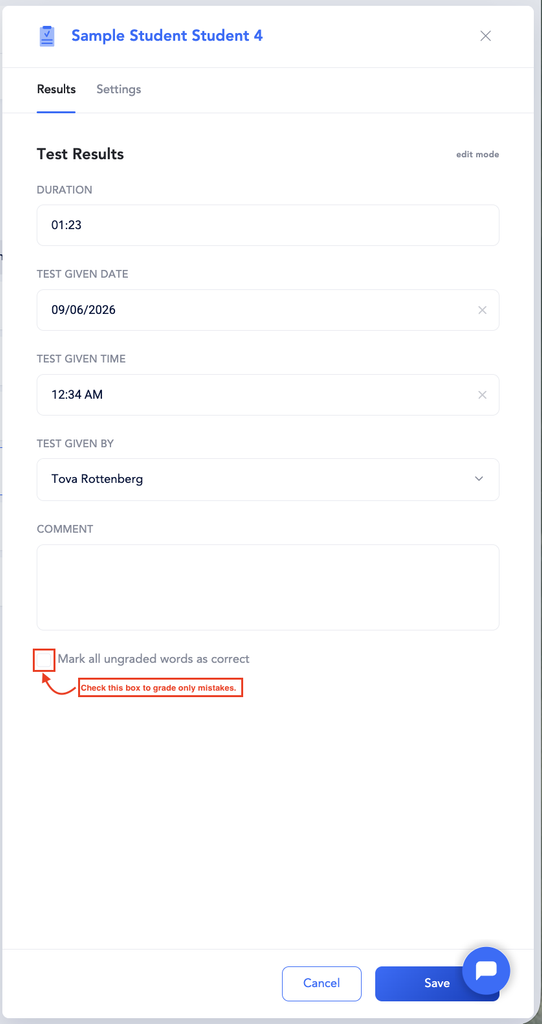
For quick grading: Select Mark all ungraded words as correct, then mark only the responses that are Incorrect or Self Correct.
Click Save when you are finished entering the test information.
Grade the Test
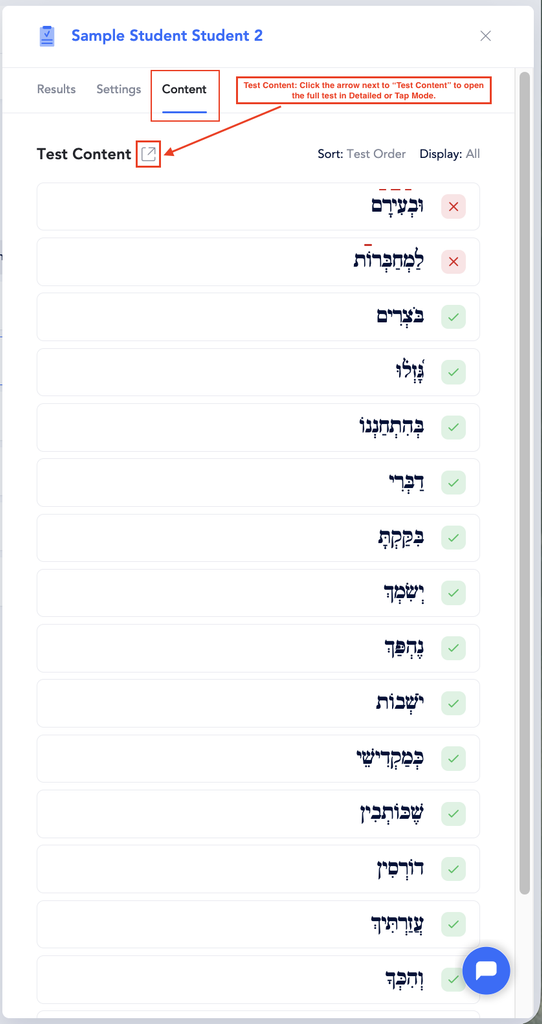
After clicking Save, the test content will appear.
View the Full Test
To view the entire test at once, click the expand icon next to Test Content.
The full test can be displayed in two ways:
- Match PDF: Matches the printed PDF exactly.
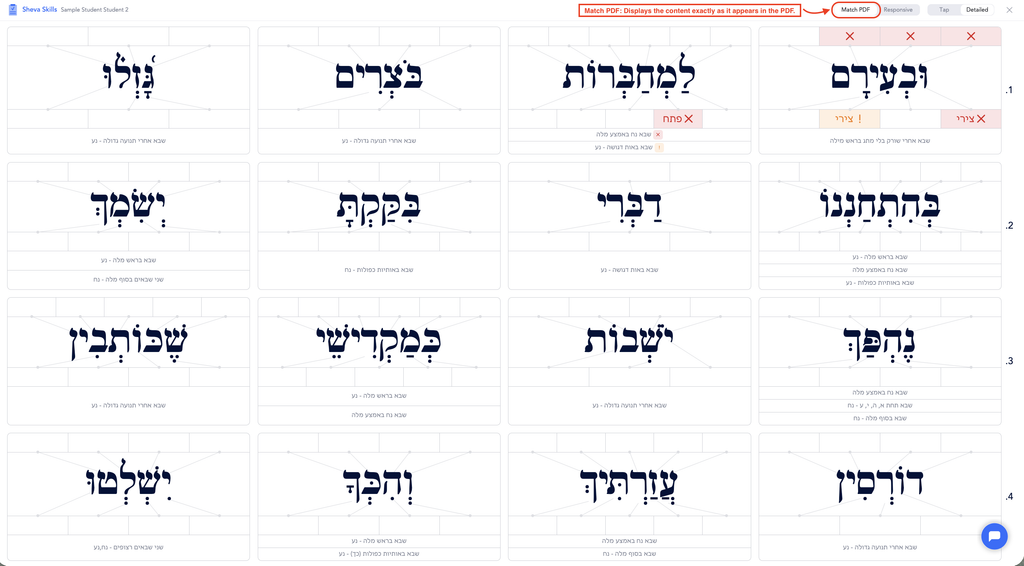
- Responsive: Adjusts the test to fit your screen.
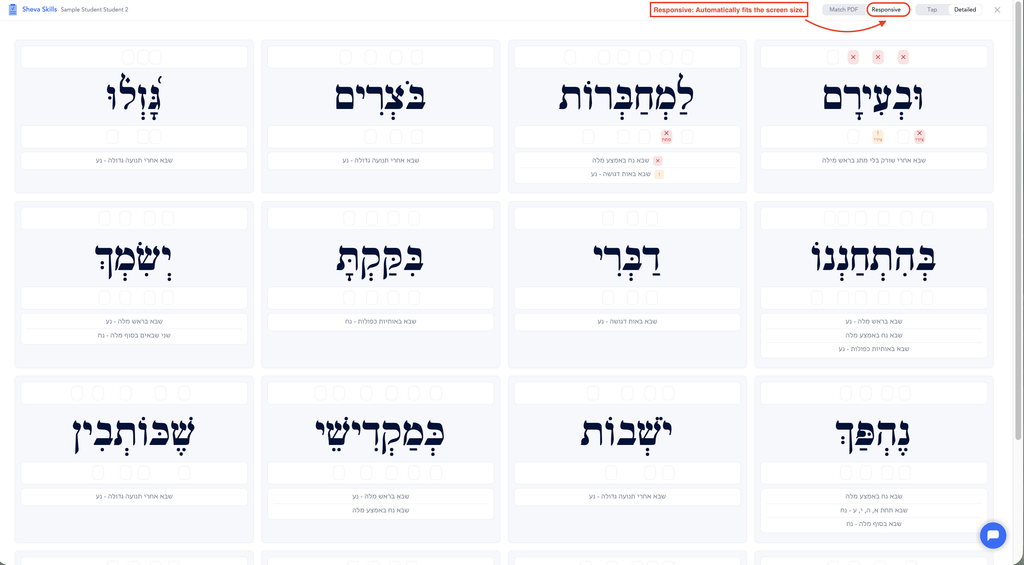
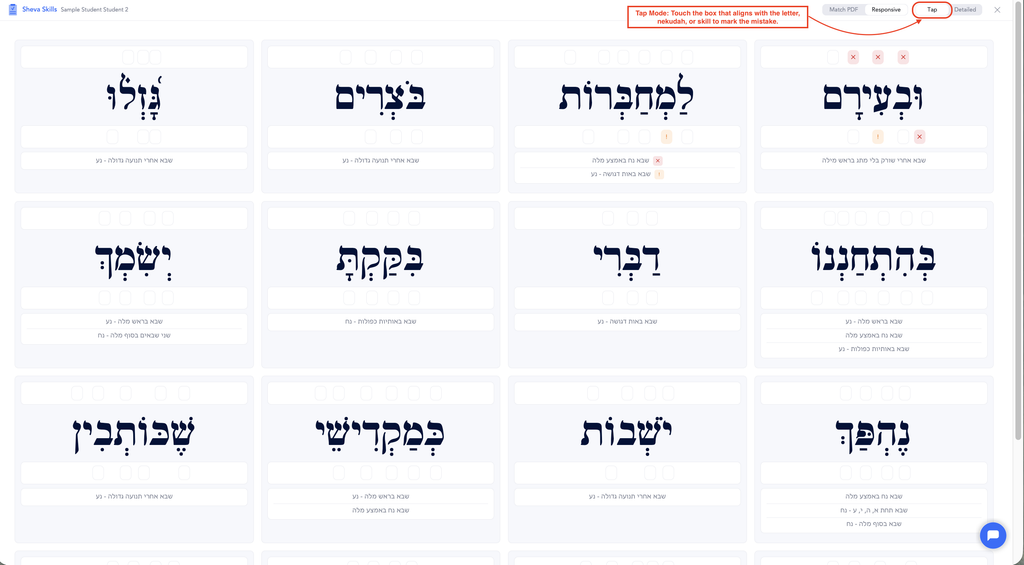
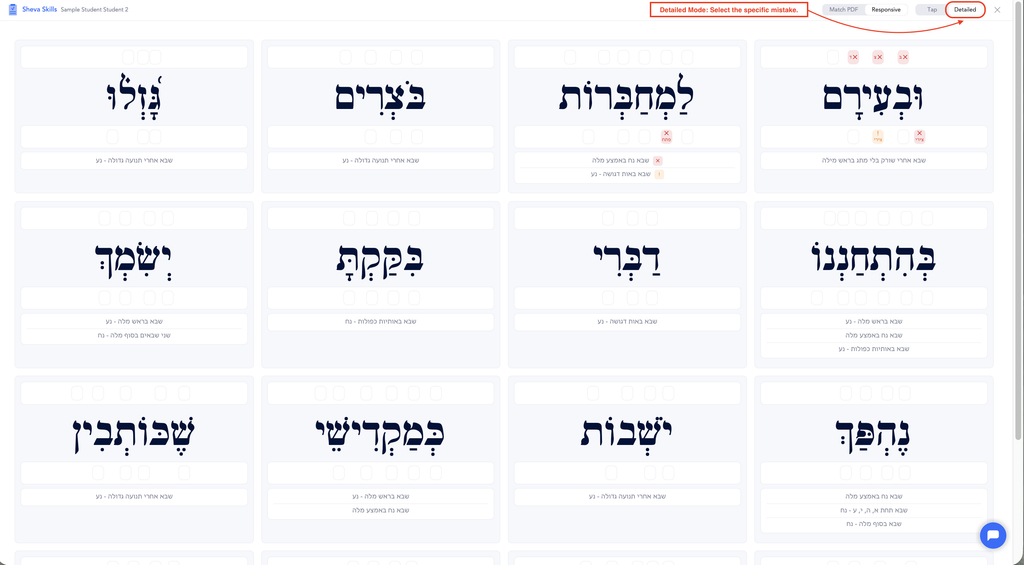
When viewing the full test, you can also choose how to grade:
- Tap: Quickly mark responses as correct, incorrect, or self-corrected.
- Detailed: Record the specific mistake made.
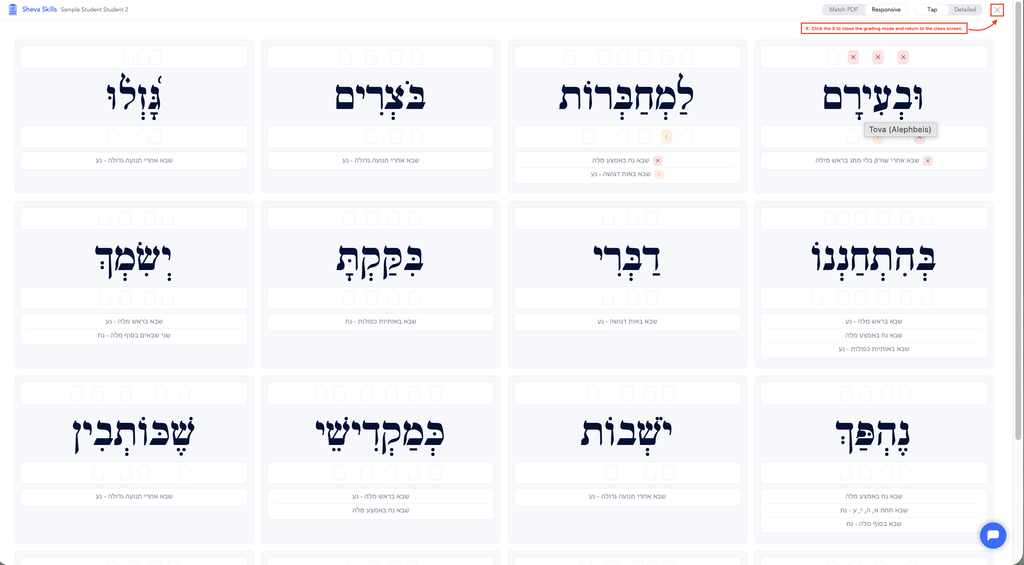
Exit Grading
When you are finished grading, click the X in the top-right corner to close grading and return to the class screen.
How to Edit a Graded Smart Test
You can edit a Smart Test after it has been graded if you need to make a correction or update the test.
Select the Test
- Go to Classes and select the class.
- The Class List tab will open by default.
- Select Smart Tests.
- The most recent test will be selected by default.
- To grade a different test, click Choose Test and select the test you would like to grade.
Select the Student
- Click on the student whose test you would like to edit.
- The student’s information card will appear.
- Click the pencil icon to edit the graded test.
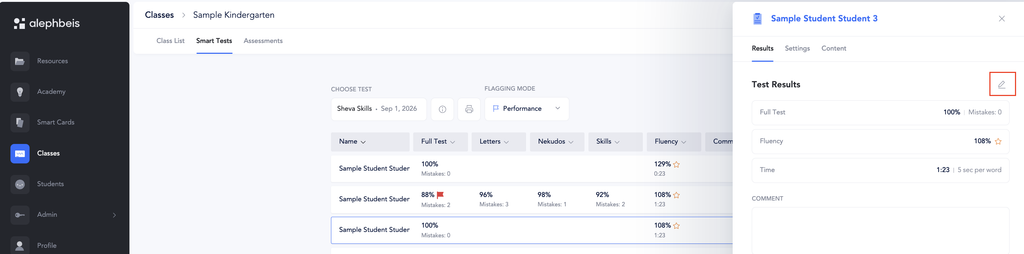
Make the necessary changes to the graded test.
Individual Grading
To grade a word individually, click the box to the right of the word.
Select One:
- ✓ Correct
- ✗ Incorrect
- ! Self-Corrected or Hesitant
This is the quickest way to record the student’s responses.
Detailed Grading
To record the specific mistake a student makes, click the word.
The word will open in Detailed Mode, where you can record the specific mistake in the Letters, Nekudos, or Skills sections.
To close Detailed Mode for a word, double-click the box to the right of the word.