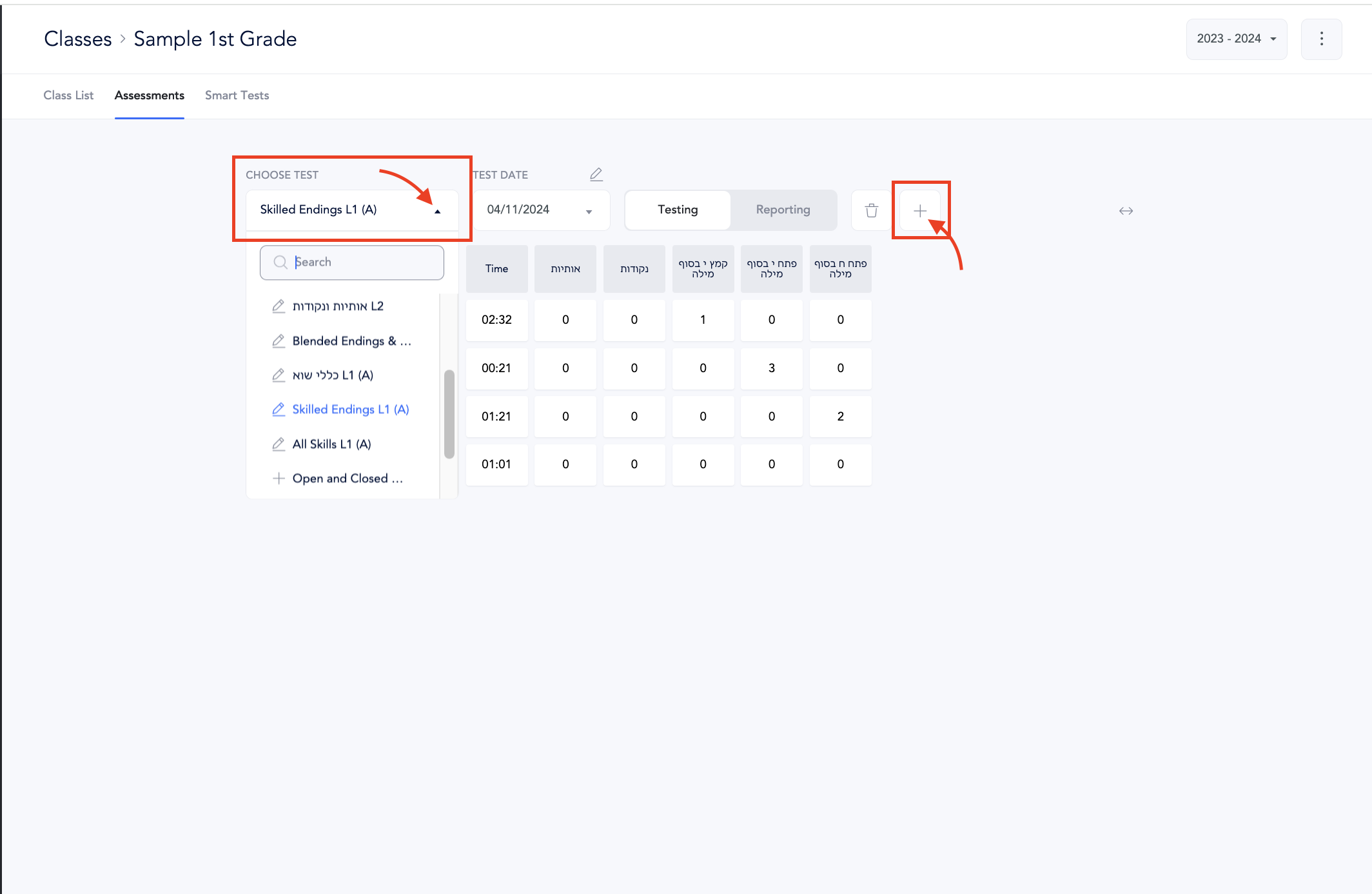
Deadlines for Editing Previous Year Data
- Northern Hemisphere Schools: You can edit, delete, or add new tests for the previous school year until September 1st.
- Southern Hemisphere Schools: You can edit, delete, or add new tests for the previous school year until February 1st
How to Update Previous School Year Test Data (Step-by-Step)
- Go to Classes
- Access School Year Menu: Find the menu or dropdown that allows you to switch between different school years.
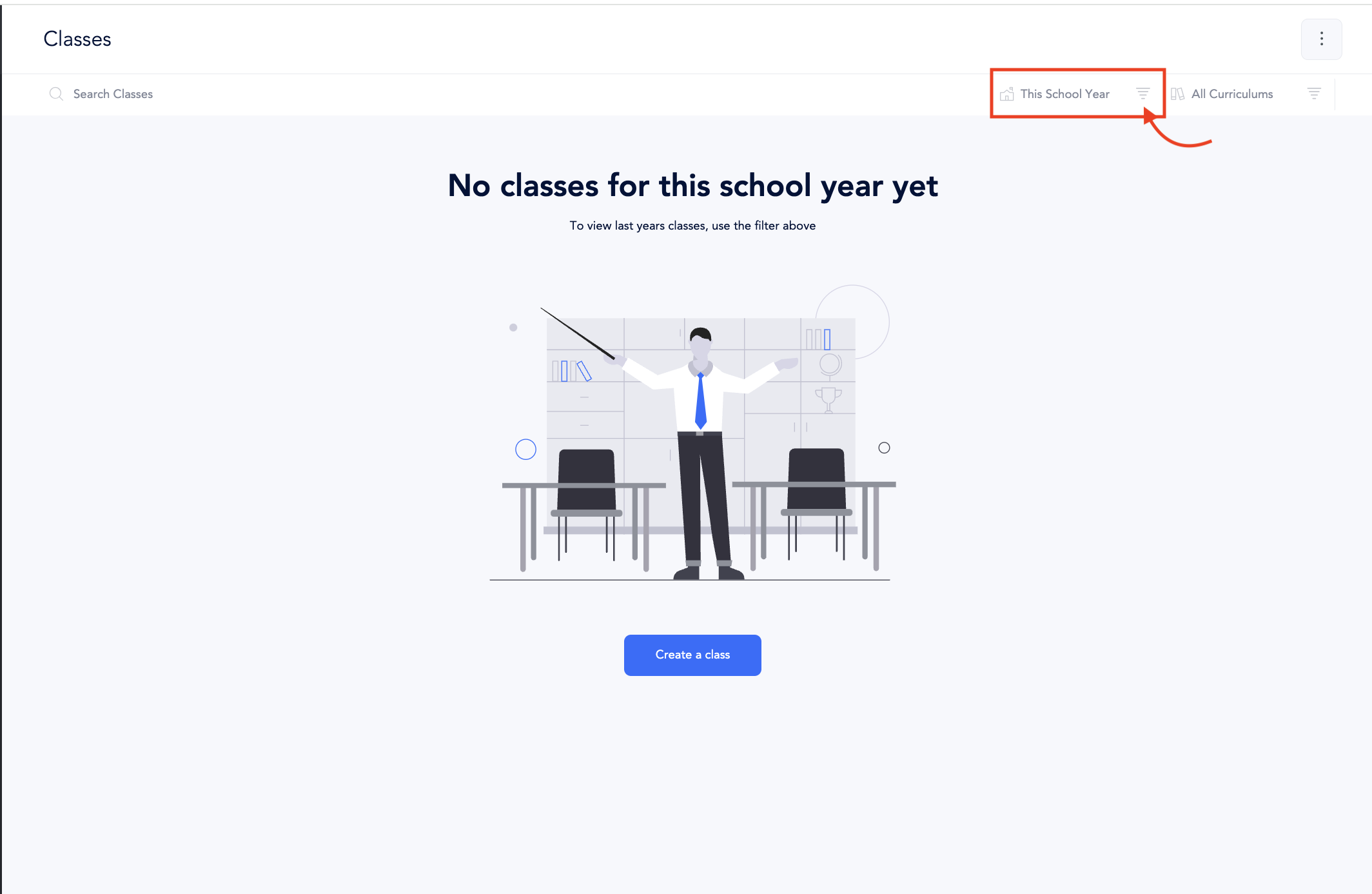
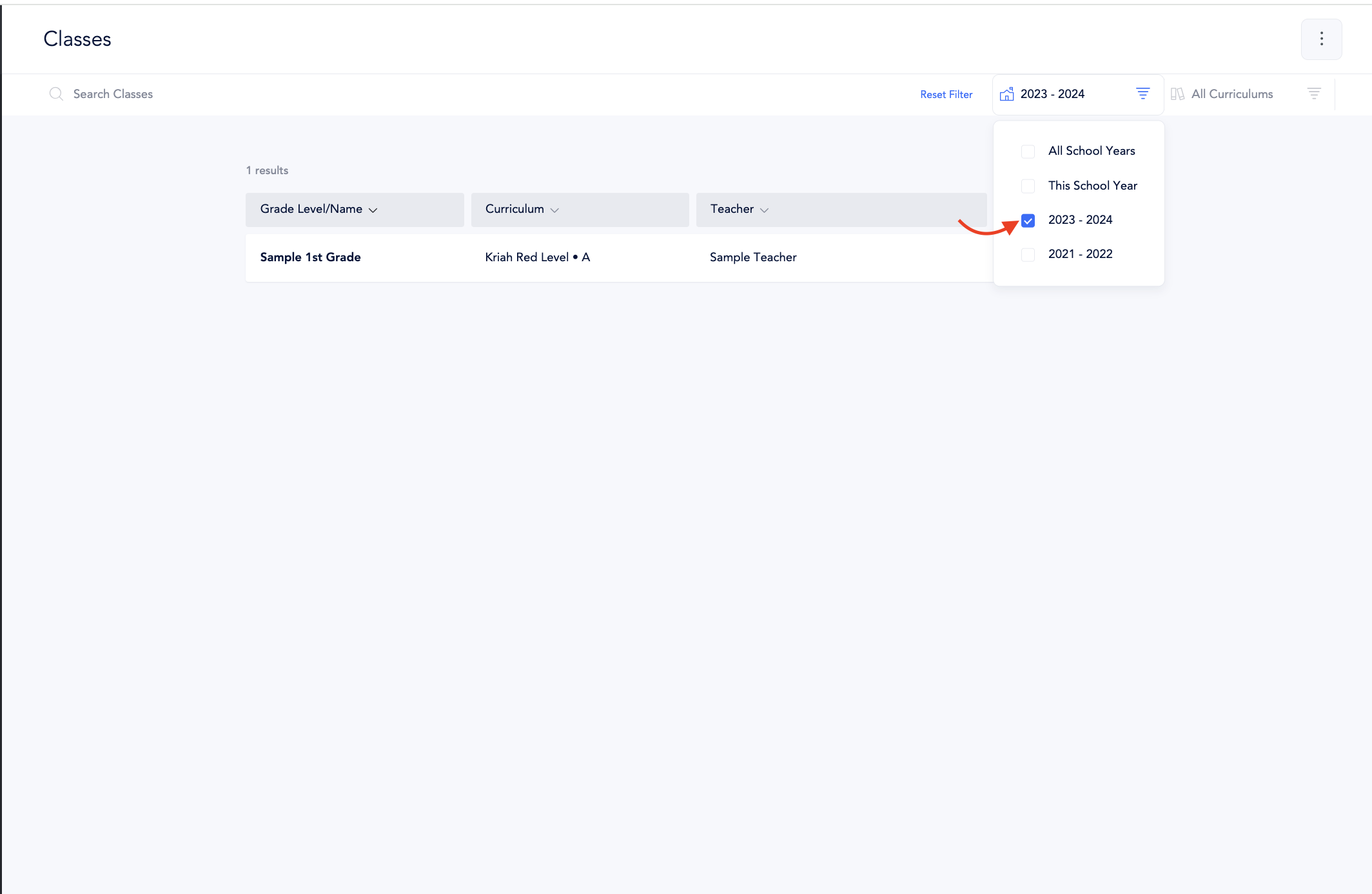
- Select Previous School Year: Choose the school year for which you want to update test data.
 The default view after selecting the year will is set to “reporting.”
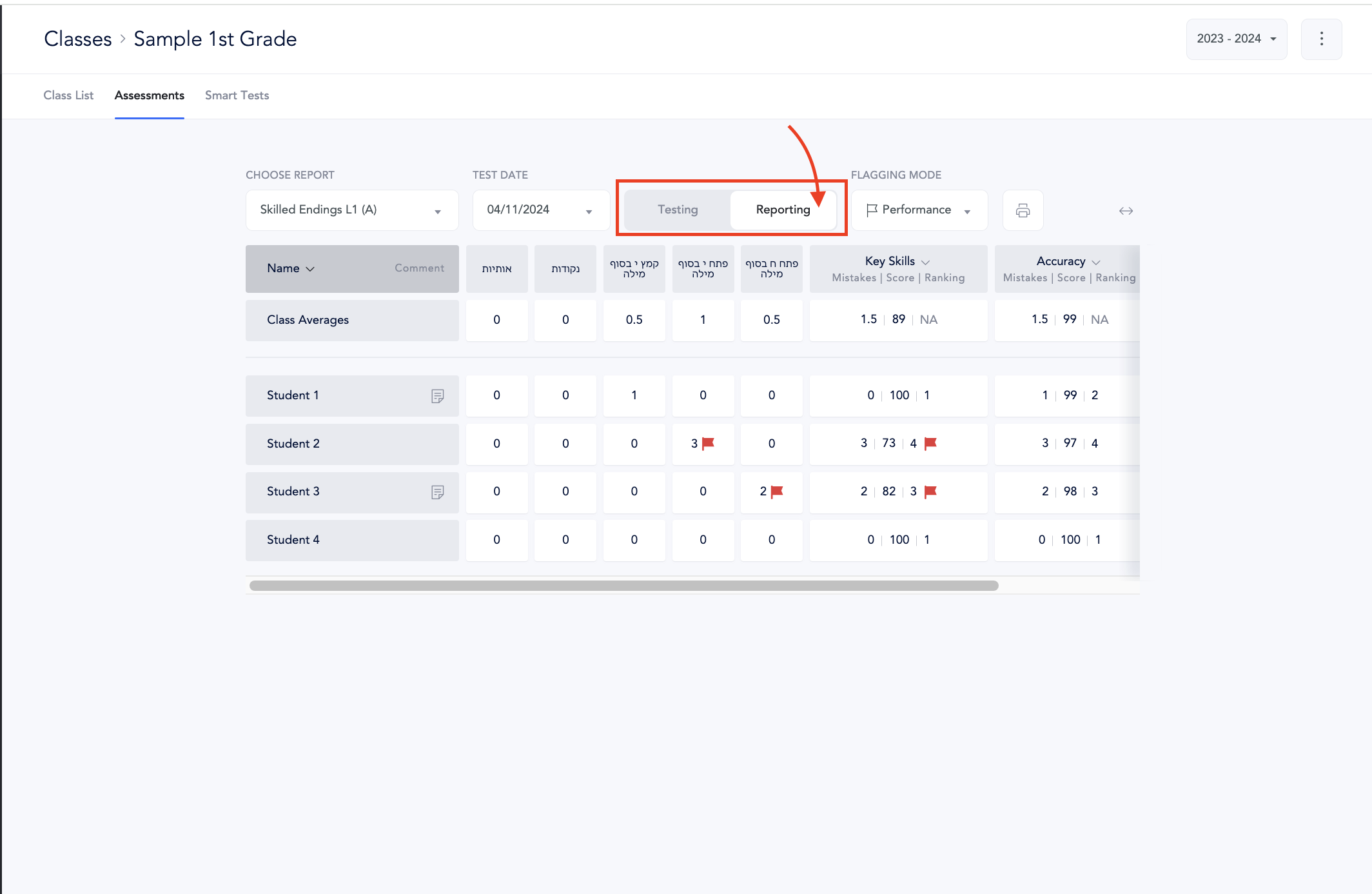
- Choose Testing Mode: Locate the option to switch to “Testing Mode” that allows you to edit test data.
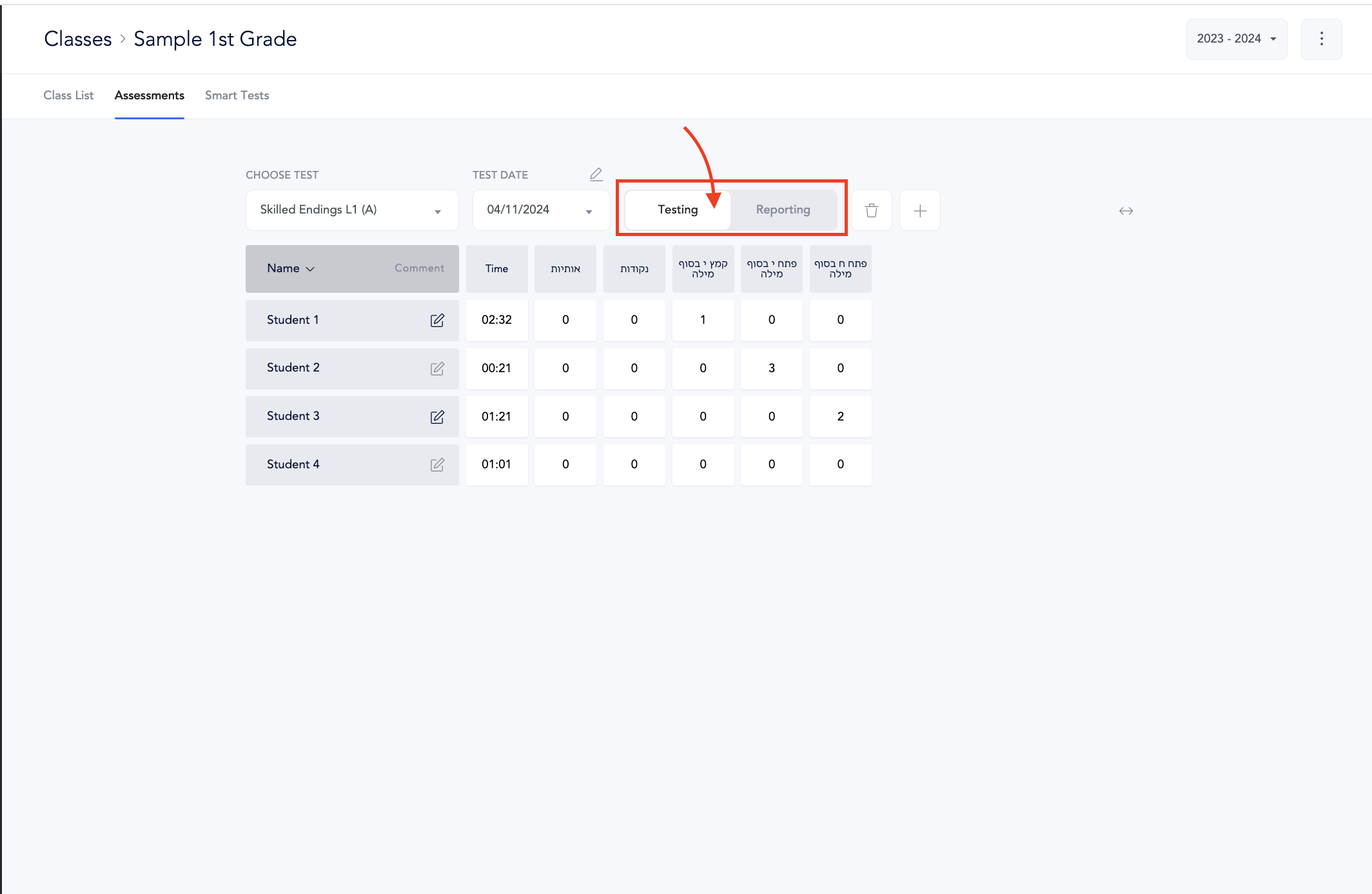
- Select Test for Editing: Once in Testing Mode, you can choose the specific test you want to edit, delete, or retest.