
Data entry for the first assessment
- Classes > Select Class
- Select Assessment tab
- Since no tests were given this school year the only option that you will see on the screen will be to create a test.

- After selecting ‘Create a Test’, you will be prompted to select the test.
- The date will default to the date that you created the test.
- If you need to change the date, click on the dropdown next to the date and select the date that the test was given.
- Click on ‘Create’ See this article on ‘Recommended Tests’ vs ‘Other Tests’.
- Start with entering the time it took the student to complete the assessment.
- Once you input the time, the row will be populated with 0s, as it’s the most common number of errors.
- Navigate from cell to cell by pressing ‘Tab.’
- If the student made any mistakes, update the cell with the number of errors in that skill area.
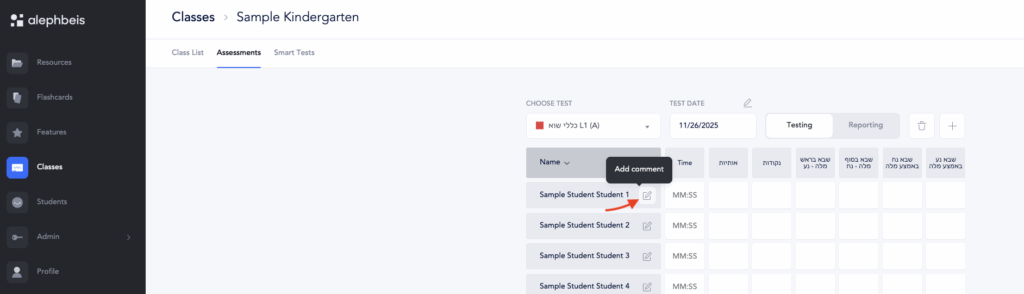
- To add a comment, click on the comment icon next to the username, then click on check to save it and close the comment box.
- All grades are saved as they are entered
Data entry for additional assessments
- Classes > Select Class
- Select Assessment tab
- The defaults creen will display the reporting of the most recently entered assessment.
- Select the ‘Testing’ tab
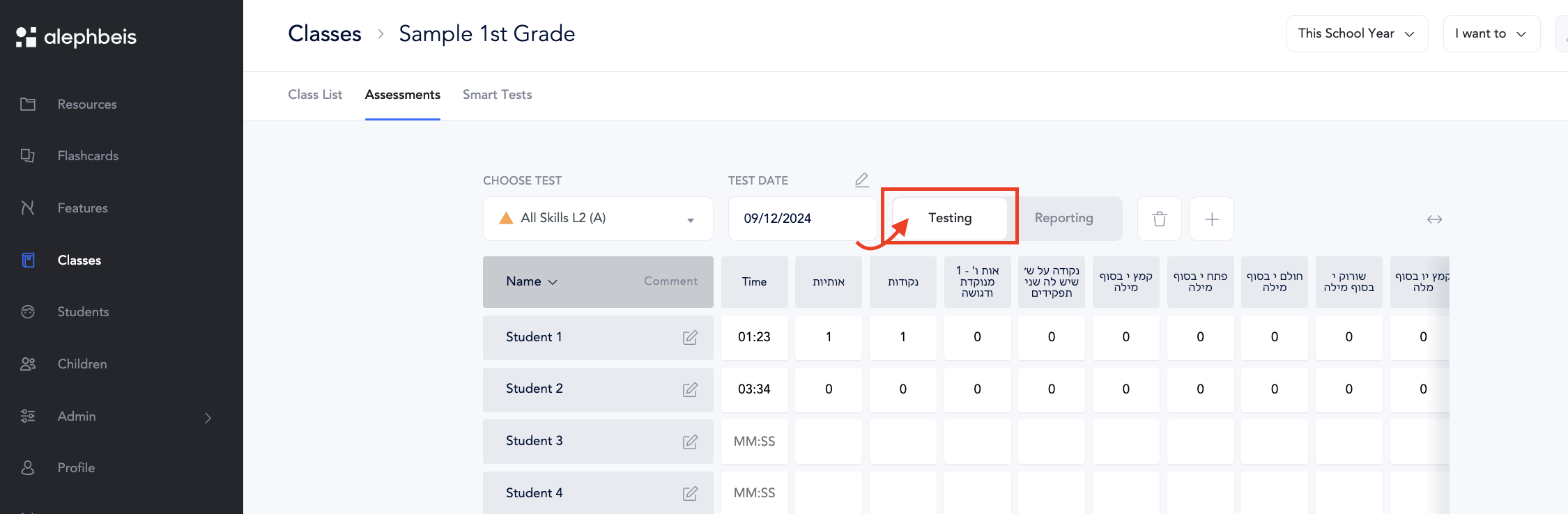
- Select + to add another test.

- After selecting +, a menu will appear where you can chose the assessment that you would like to grade. Choose the test that you’d like to grade (this can be a retest – or a test that was given for the first time this school year). See this article on ‘Recommended Tests’ vs ‘Other Tests’.
- Start with entering the time it took the student to complete the assessment.
- Once you input the time, the row will be populated with 0s, as it’s the most common number of errors.
- Navigate from cell to cell by pressing ‘Tab.’
- If the student made any mistakes, update the cell with the number of errors in that skill area.
- To add a comment, click on the pencil and notebook icon to the right of the student’s name, then click on check to save it and close the comment box.
- All grades are saved as they are entered.
Please note: By default, the test date will be the day you enter the assessment.
Click this link to see how to edit the test date before or after the data is entered.
Click on this link to access Q&A regarding assessments.