This article explains how to delete, activate, or inactivate a staff member.
To learn how to update a staff member’s access, role, name, or email, see this article: https://support.alephbeis.org/article/updating-a-staff-member/
Make inactive vs delete
There are two ways to remove a user’s access in the system: Make Inactive and Permanently Delete. Each option serves a different purpose, and it’s important to choose the correct one.
Make inactive
Most common option
When a user is Active, you will see the option Make Inactive.
This is typically used when a staff member or user is no longer part of your organization, but you still want to keep their history and records.
What happens when a user is made inactive?
When a user is made inactive, they immediately lose access to the application and are removed from all active user lists. They can still be viewed by switching the filter to Inactive, where they will appear with an “Inactive” tag in the user table.
When to use this option
This option is ideal when a staff member has left the school, a teacher no longer needs access, or when you want the flexibility to reactivate the user in the future.
How to Make a User Inactive
-
Go to Admin in the main menu.
-
Select Staff.
-
Click on the user you want to update.
-
In the information card that opens for that user, select Make Inactive. (See screenshot below.)
-
Confirm the action if prompted.
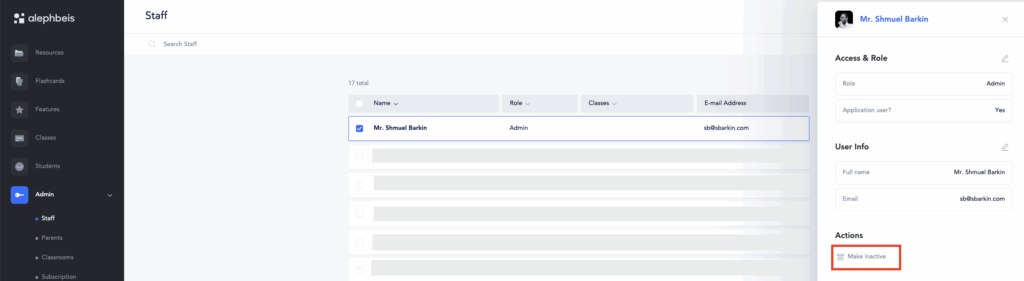
Making a user inactive will remove the user’s access and hide them. But they can still be viewed by selecting “Show inactive” on the filter bar
How to Make a User Active Again
-
Go to Admin.
-
Select Staff.
-
In the top-right filter menu, choose Show Inactive or Inactive Only. (See screenshot below.)
-
Select the user you want to reactivate.
-
In the user’s information card, select Make Active.
-
Select Save.
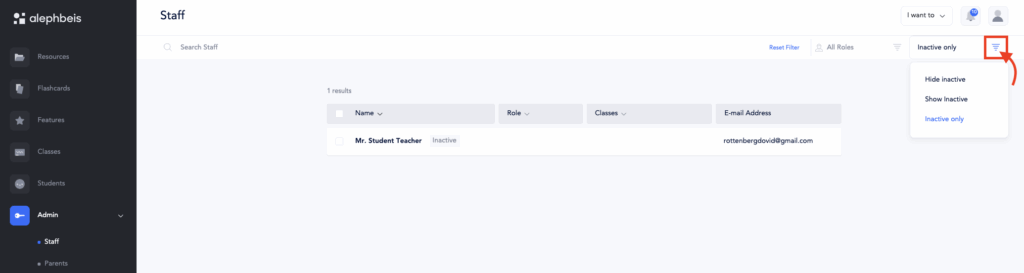
The user will now return to active status and regain access to the system.
Delete
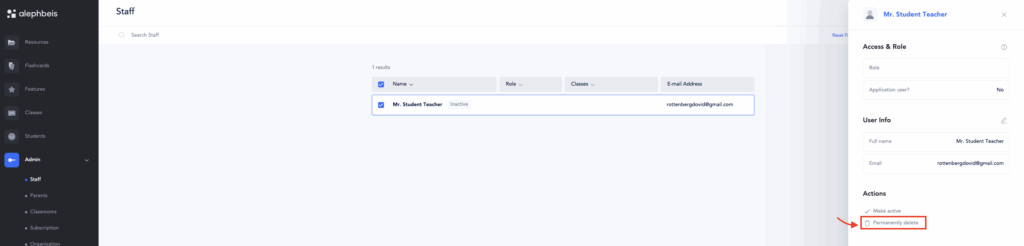
- The purpose of delete is for users that were entered by mistake and need to be removed entirely.
- To delete a user you need to first make the user inactive, then select again, and then you will see the option to permanently delete